Need to update your team's login details? See how to create or edit user passwords in Nex step-by-step to keep your store's system secure.
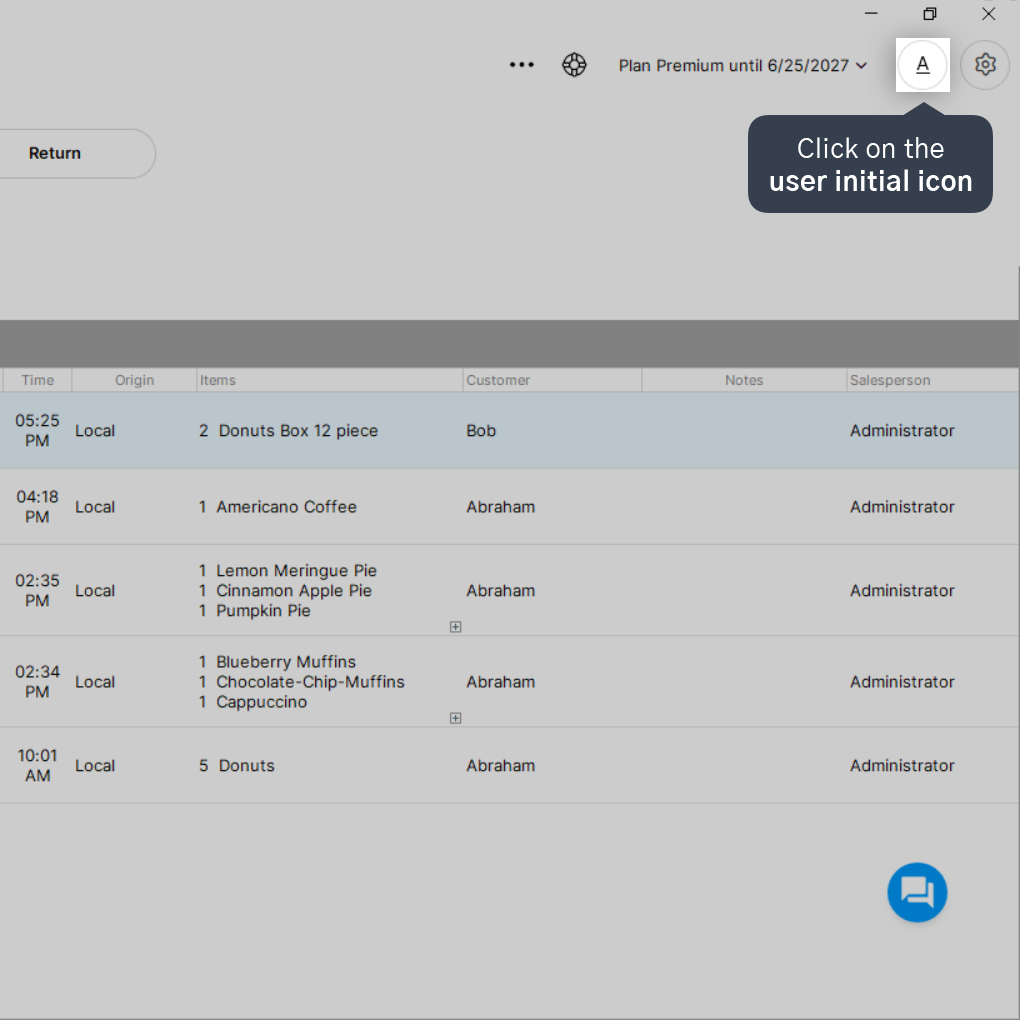
1. Open Nex and click on the user initial icon in the top right corner of the screen.
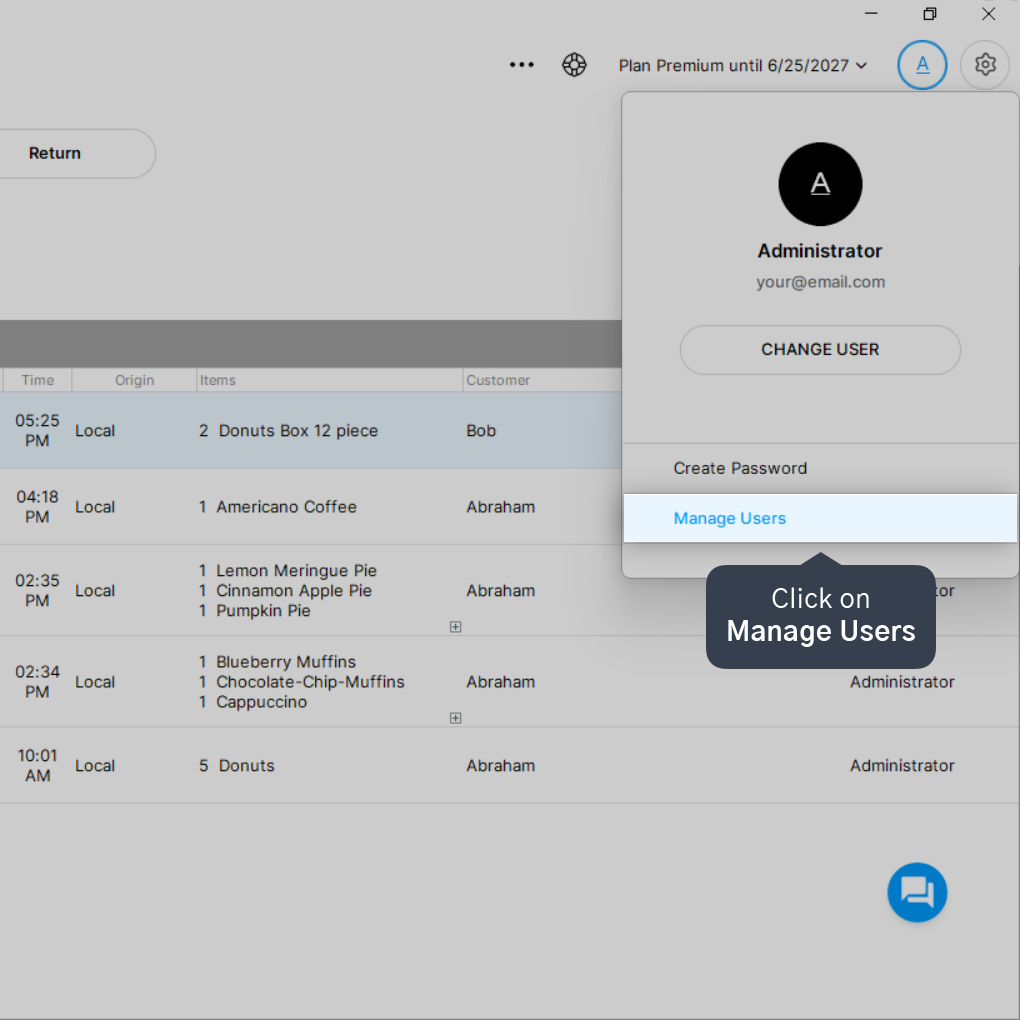
2. Click on Manage Users.
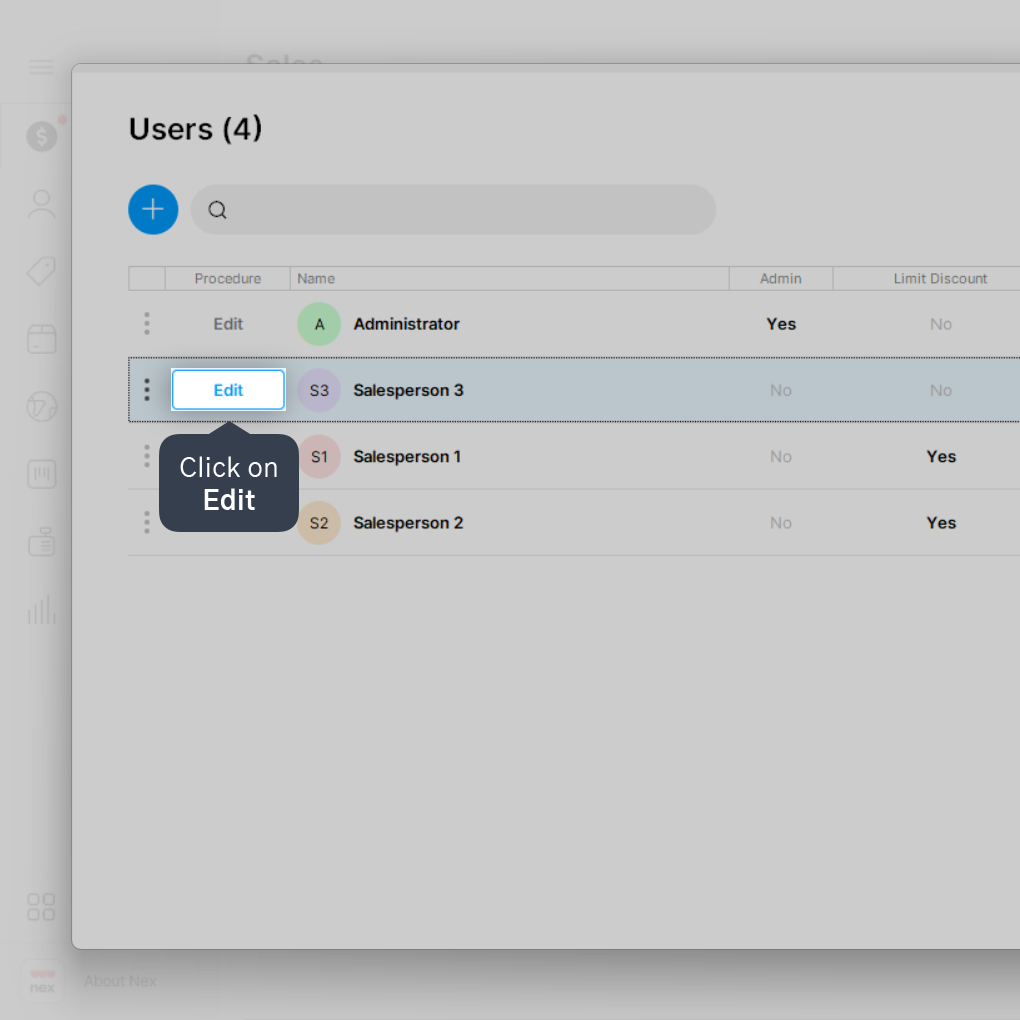
3. Click on Edit next to the desired user.
4. If this is the user's first password, enter the password in the Password field.
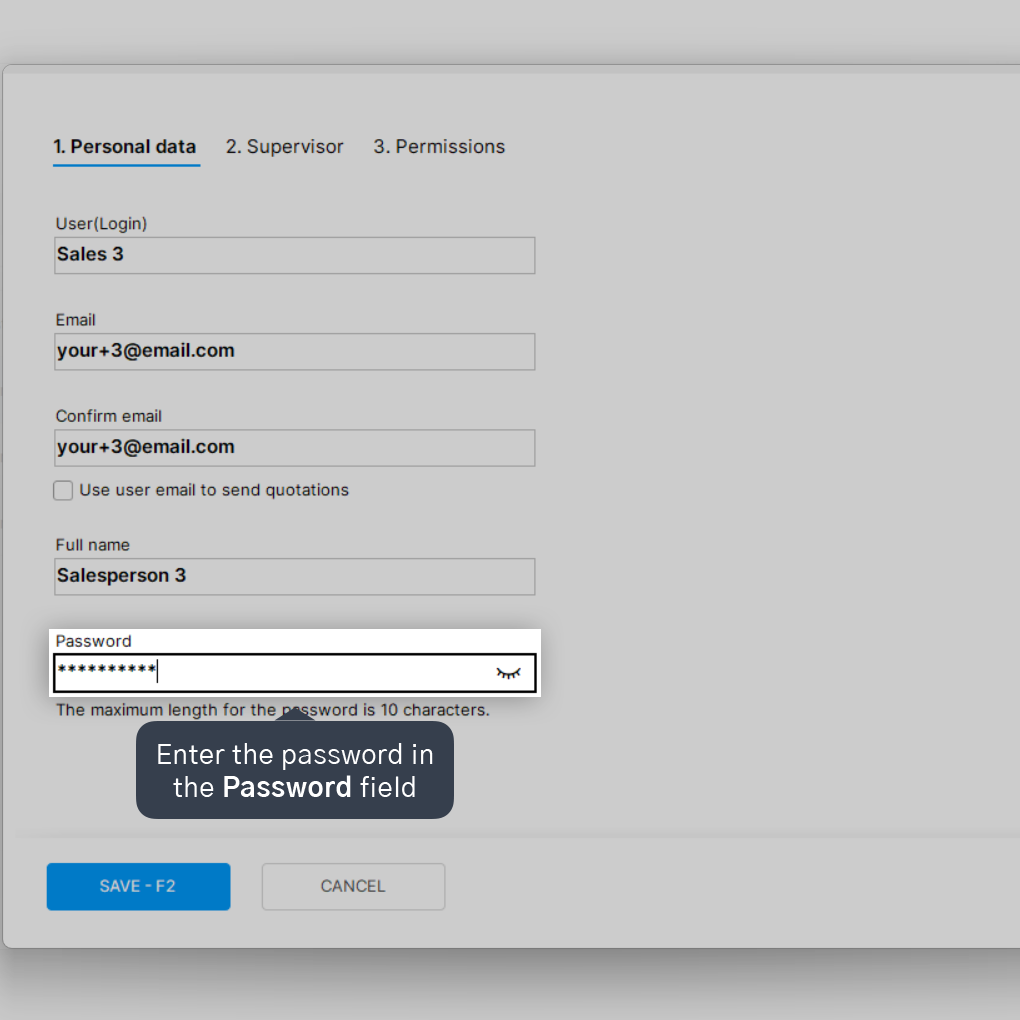
The password can be up to 10 characters long, using numbers and letters only.
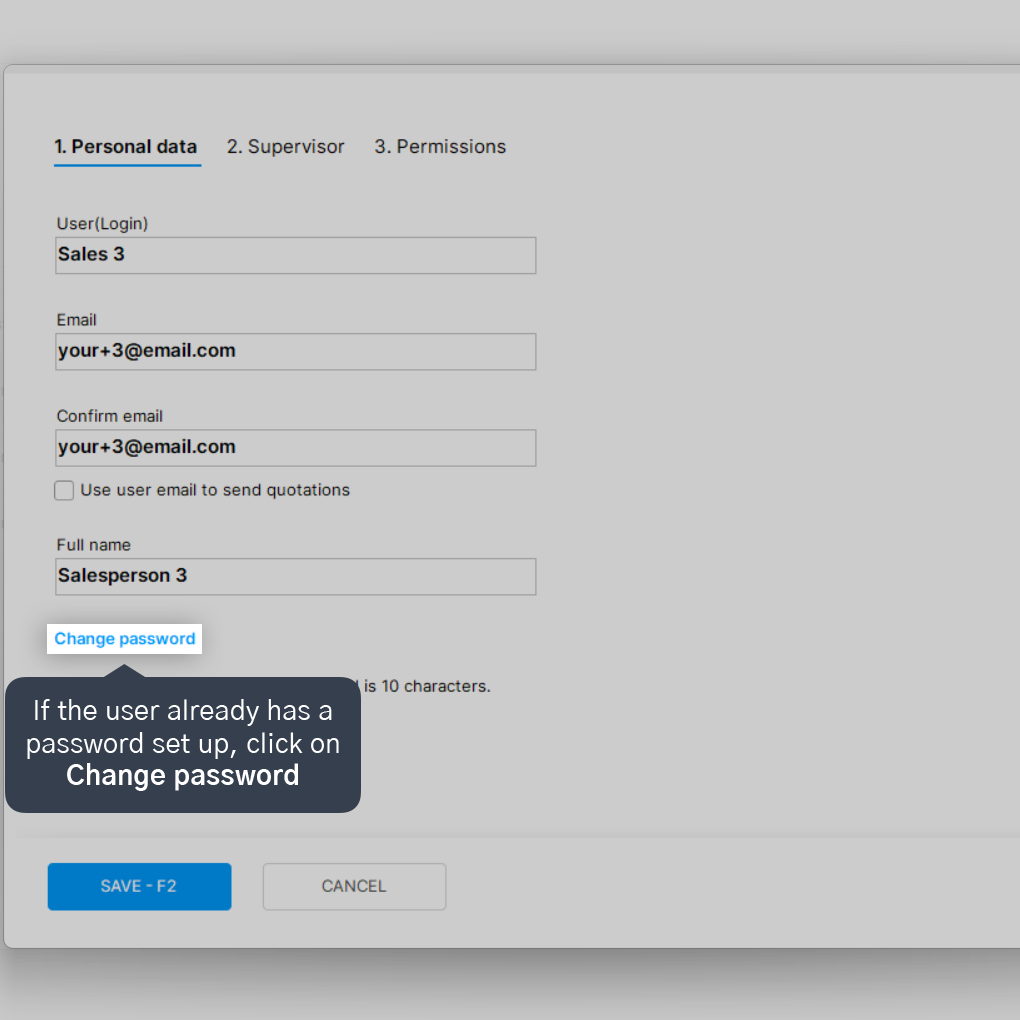
5. If the user already has a password set up, click on Change password.
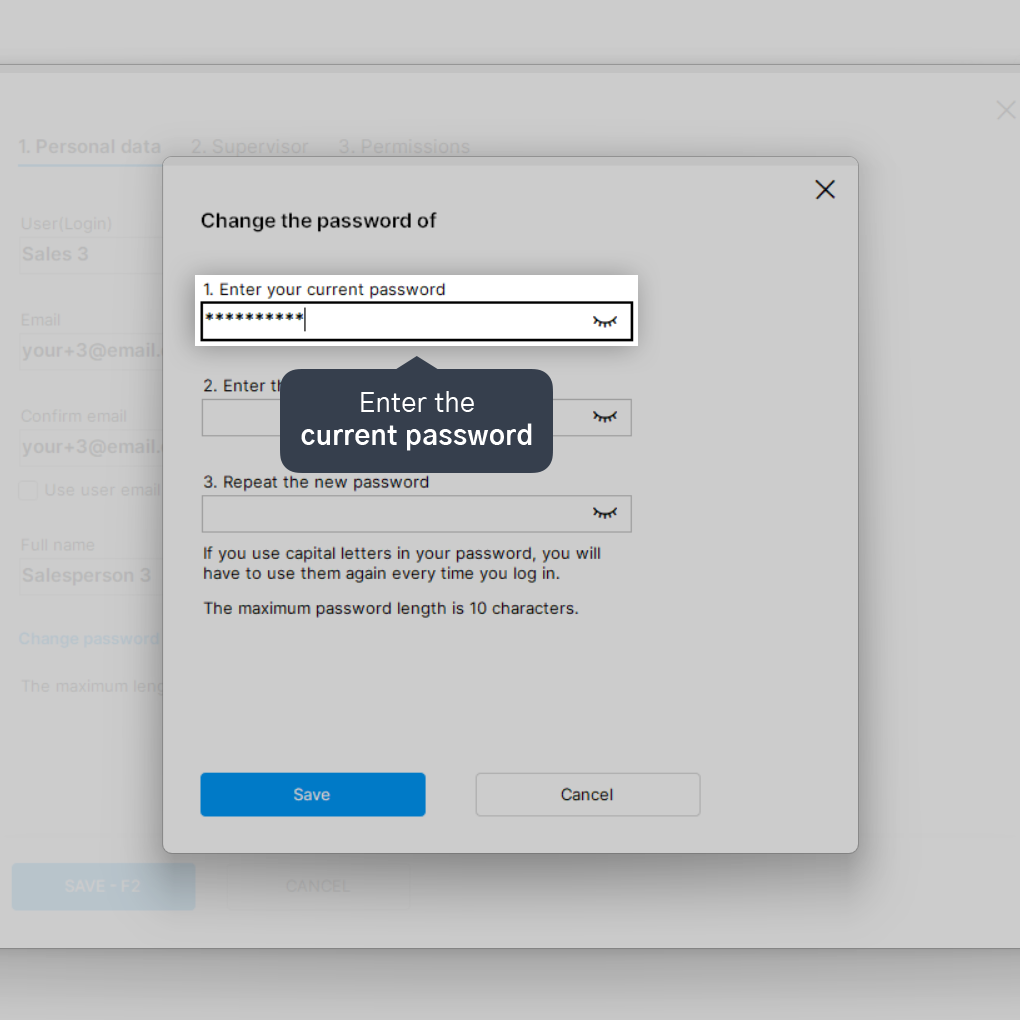
5.1. Enter the current password.
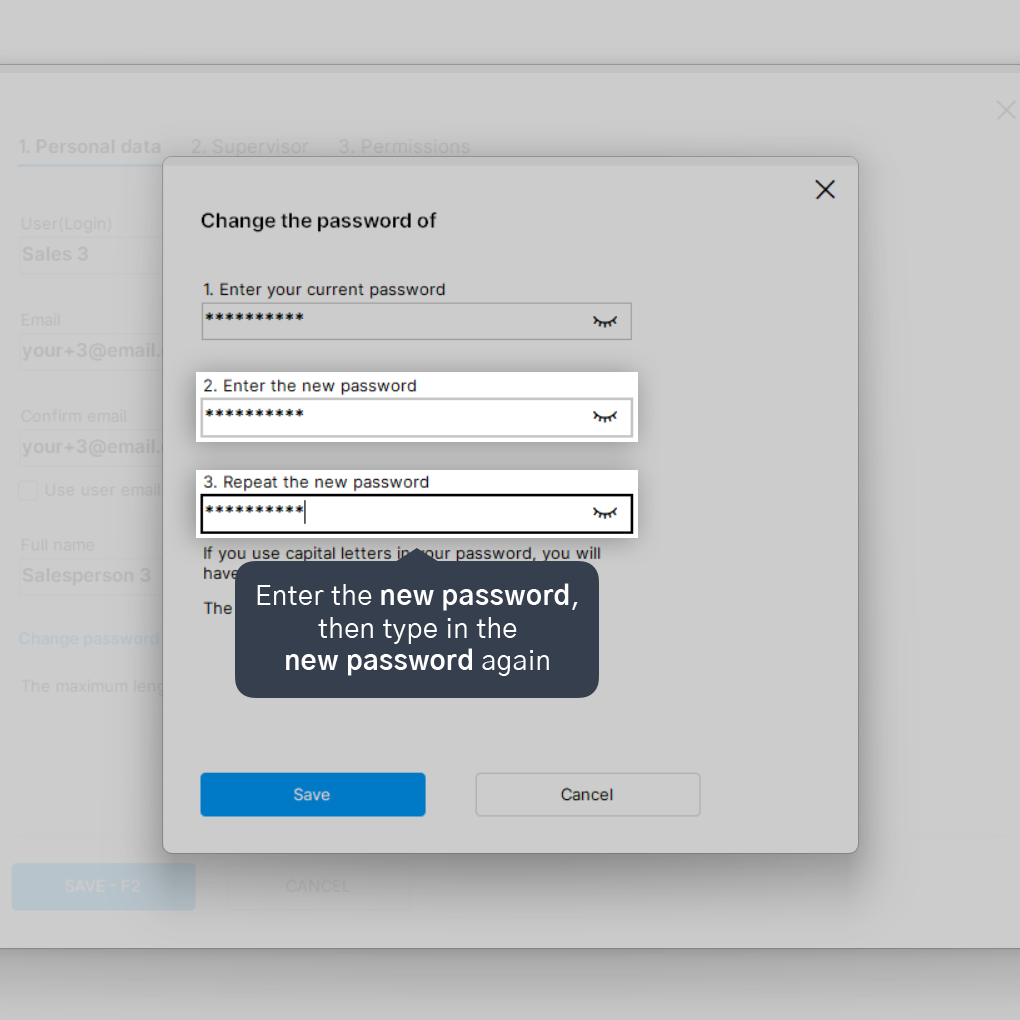
5.2. Enter the new password, then type in the new password again to confirm.
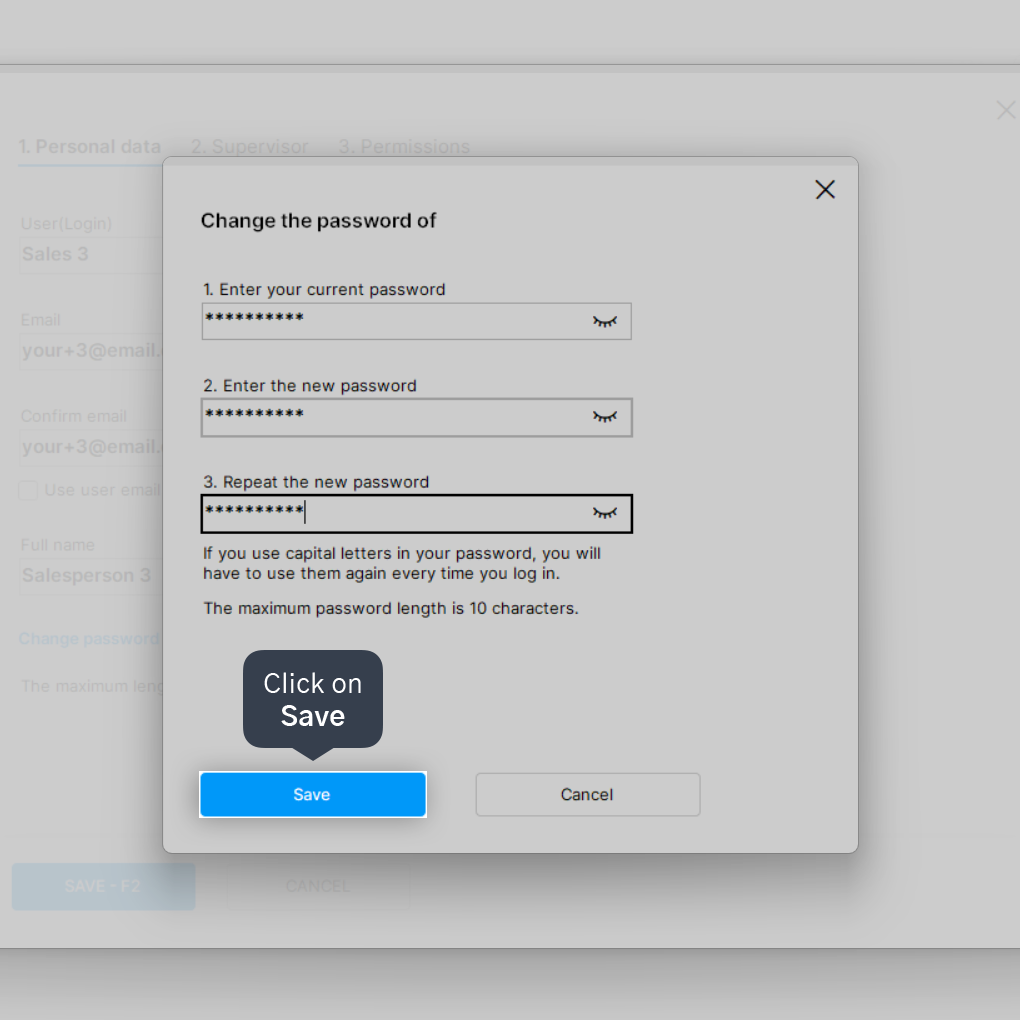
5.3. Click on Save.
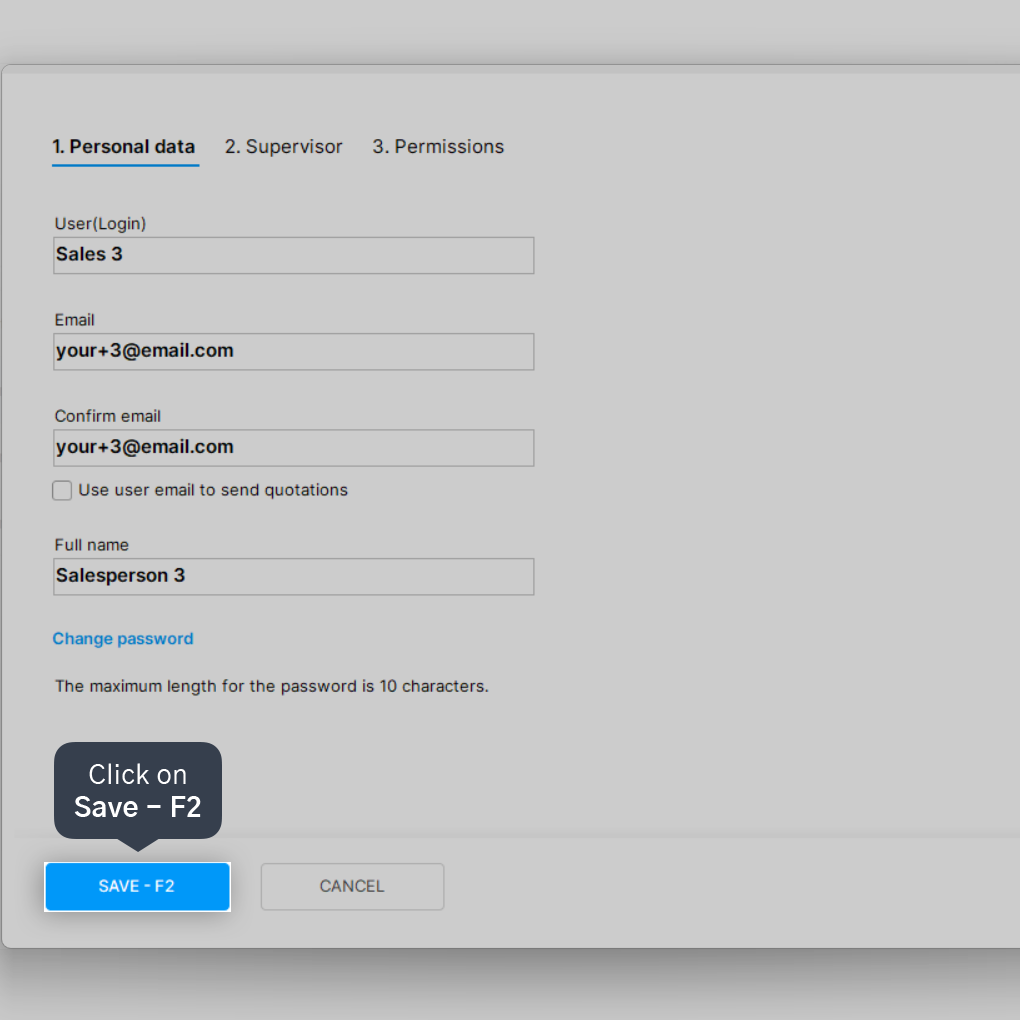
6. Click on Save - F2.
Done! The user's password has been created or updated. The next time anyone logs into Nex under this account, the password will be required.


