See how to edit or cancel a transaction made on a previous register
This feature is available using the Premium plan of Nex. Click here and check out all our subscription plans.
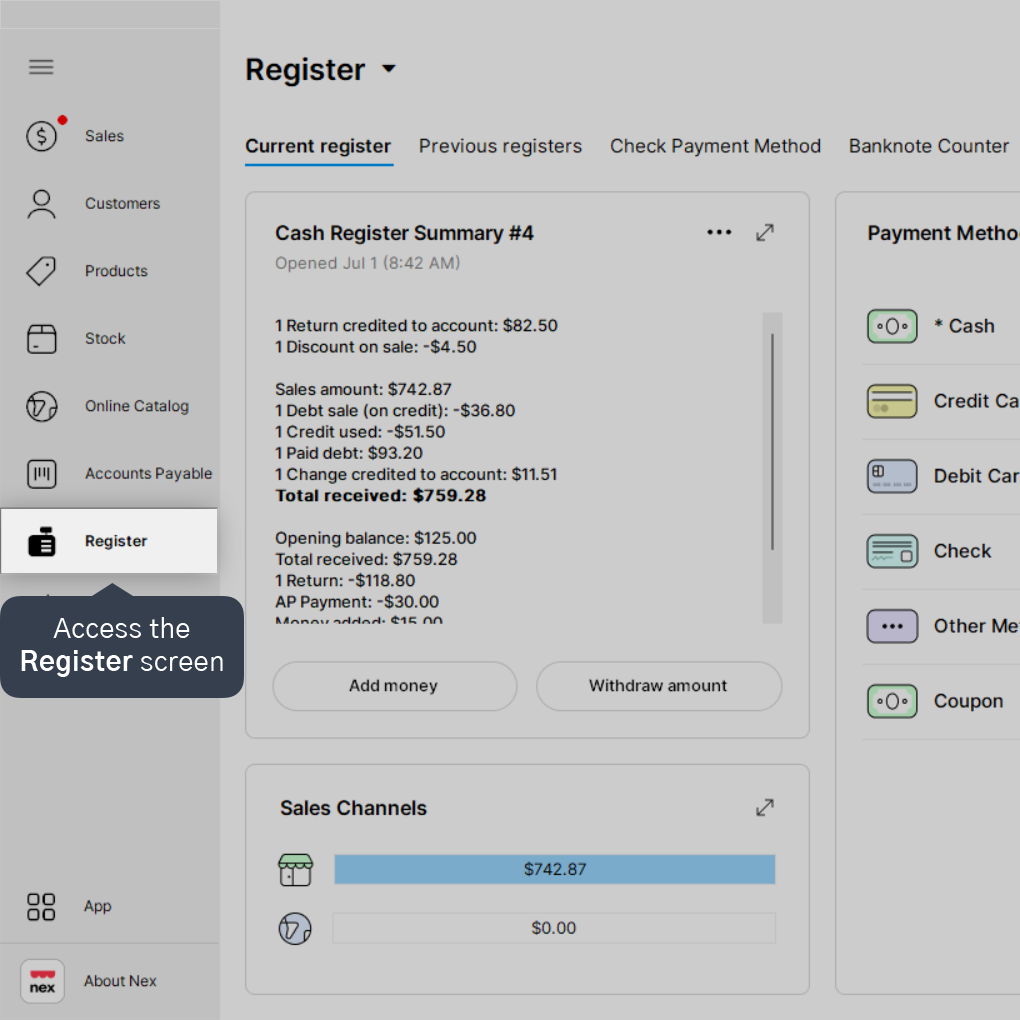
1. Access the Register screen.
2. If you have an open register, click on Close Register and complete the register closing.
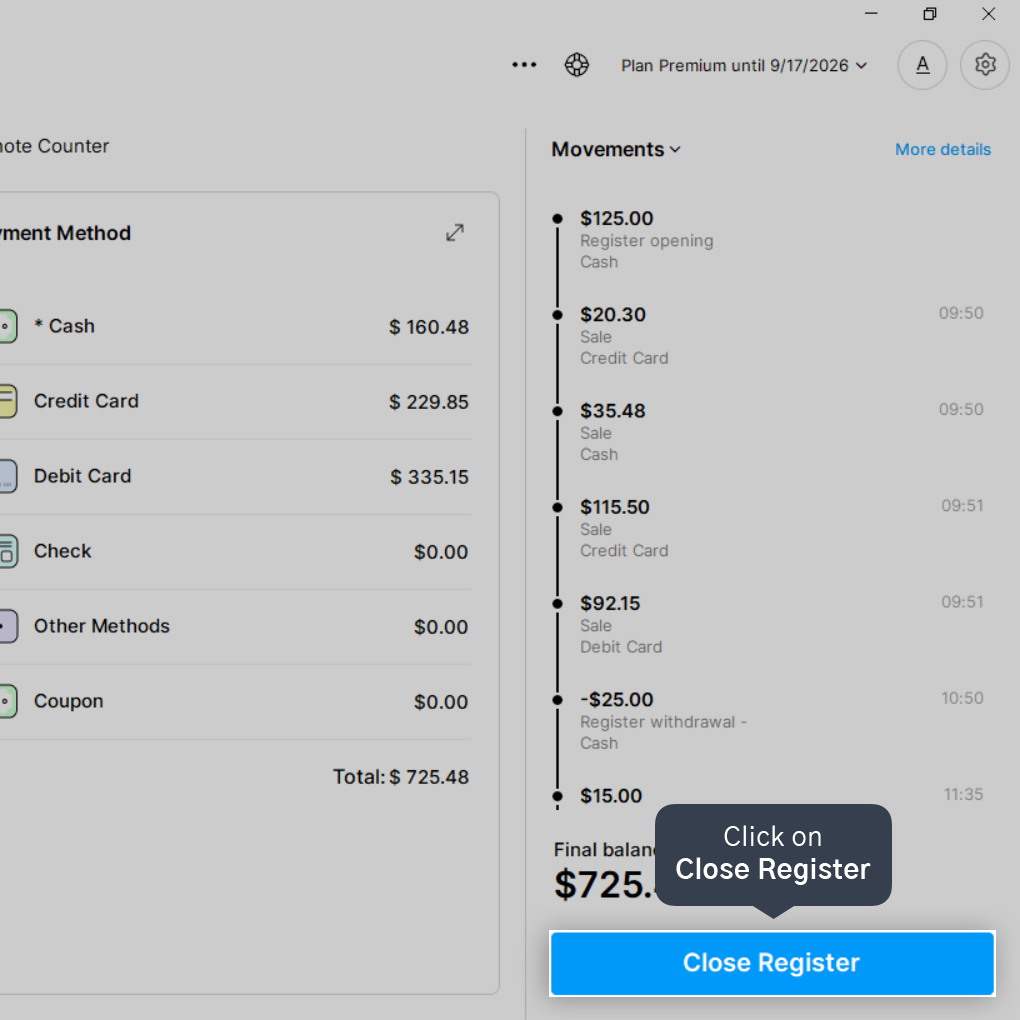
If necessary, click here and check out the tutorial on how to close the register.
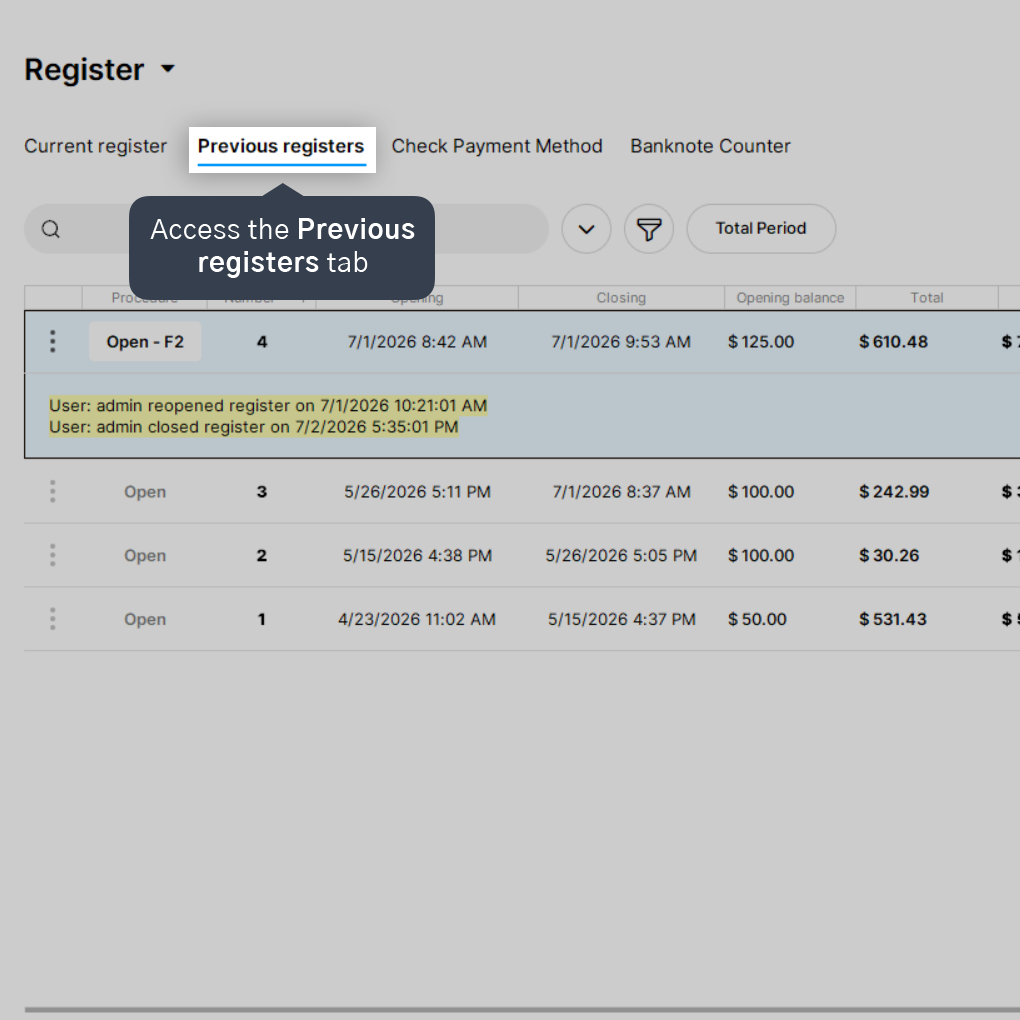
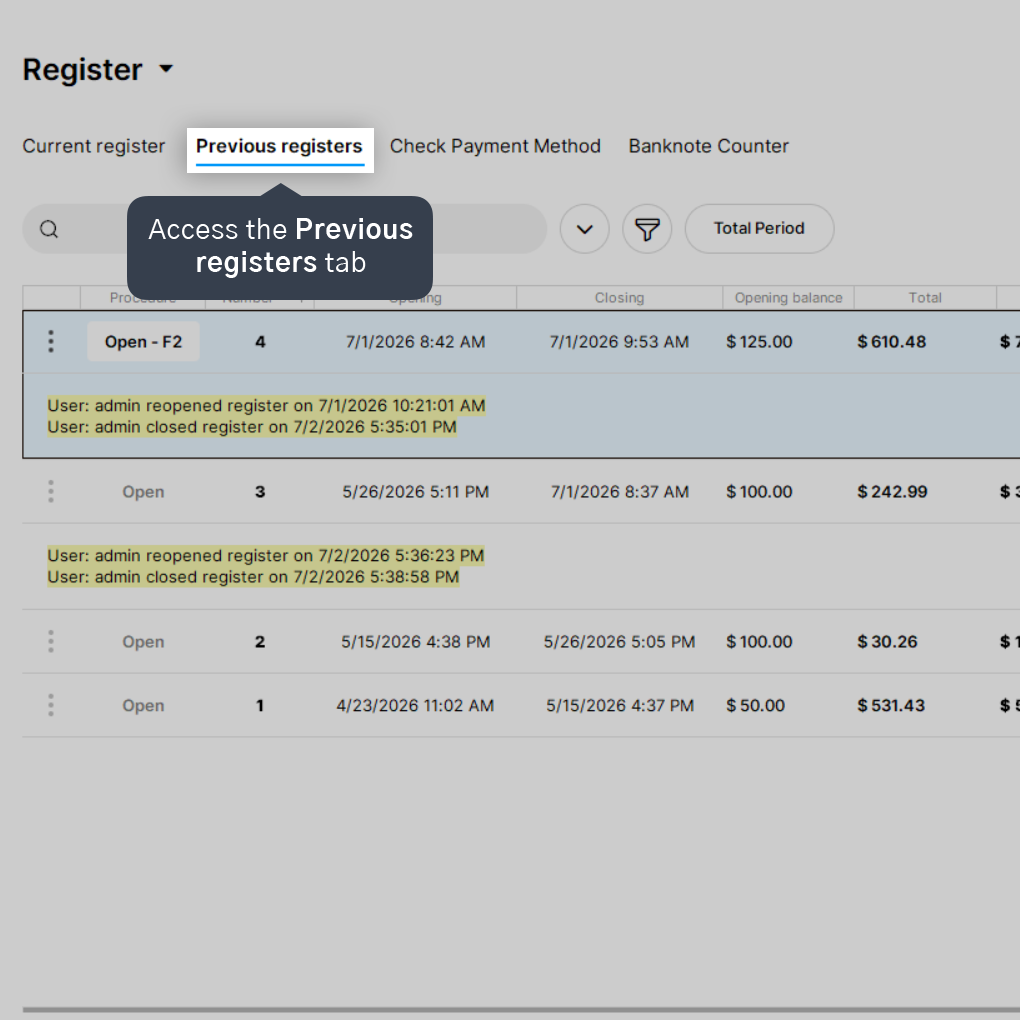
3. Access the Previous registers tab.
4. Select the previous register in which the transaction that needs to be edited or canceled was registered.
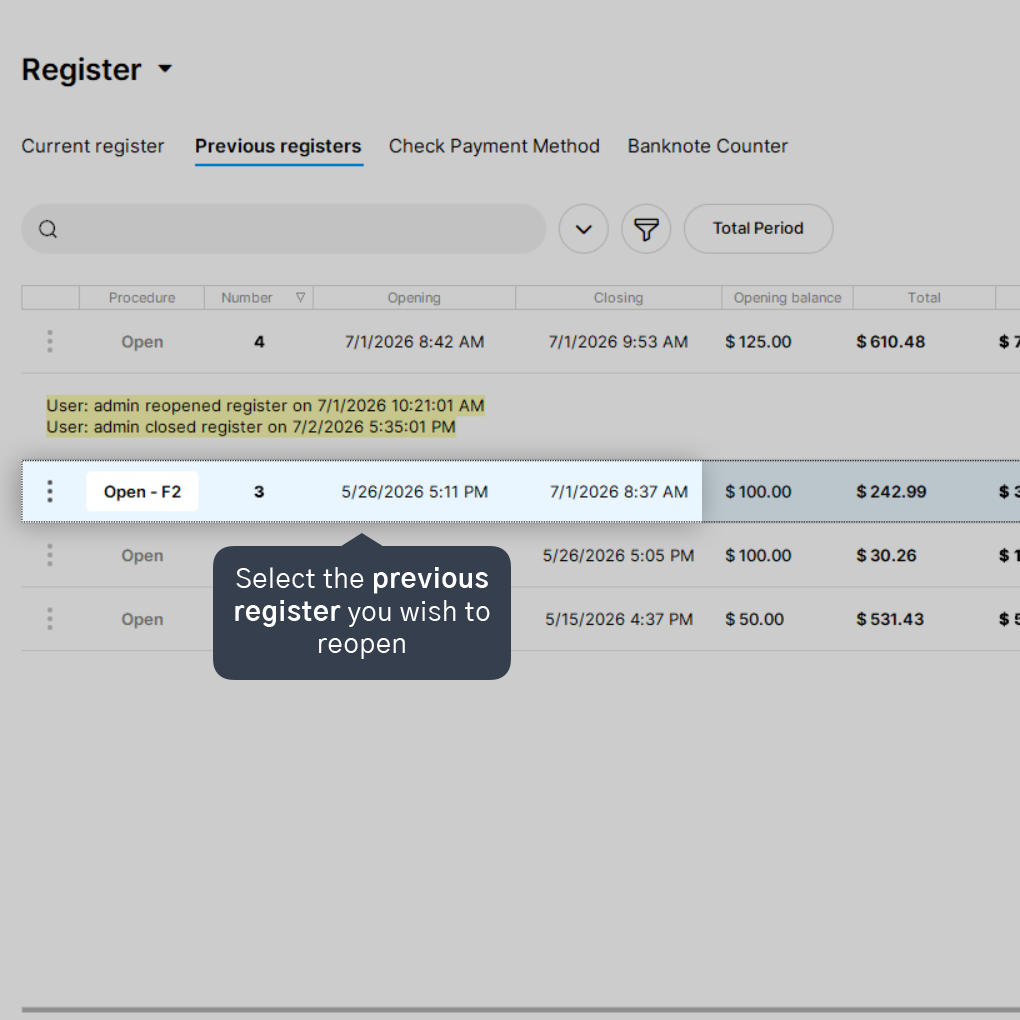
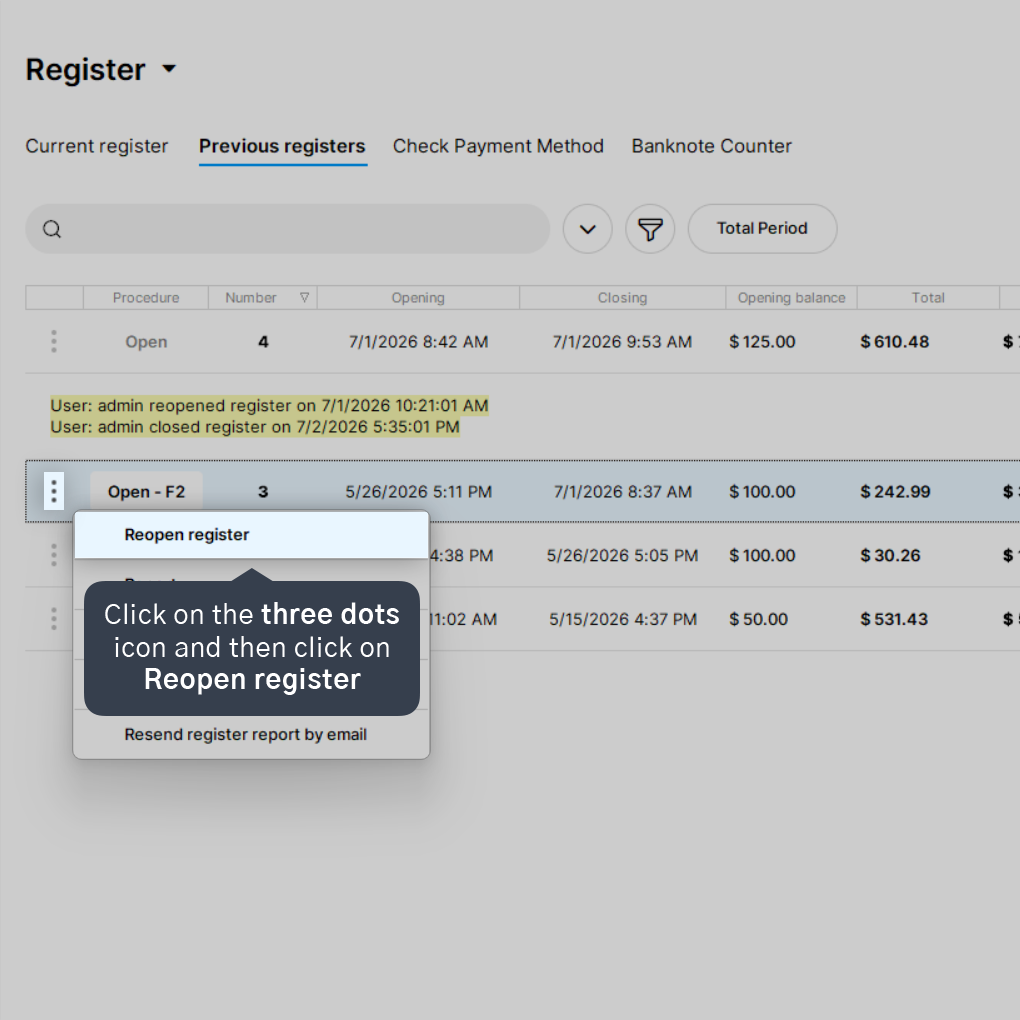
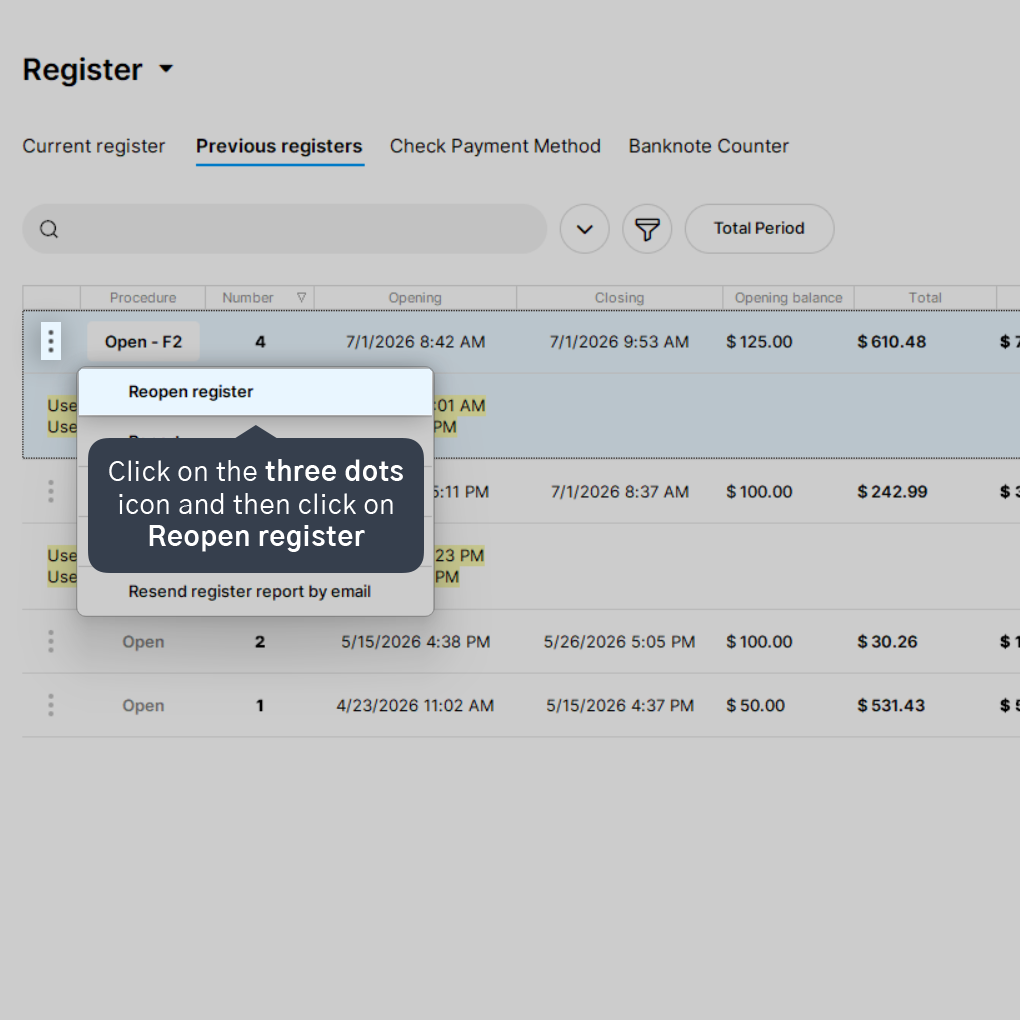
5. Click on the three dots icon (...) and then click on Reopen register.
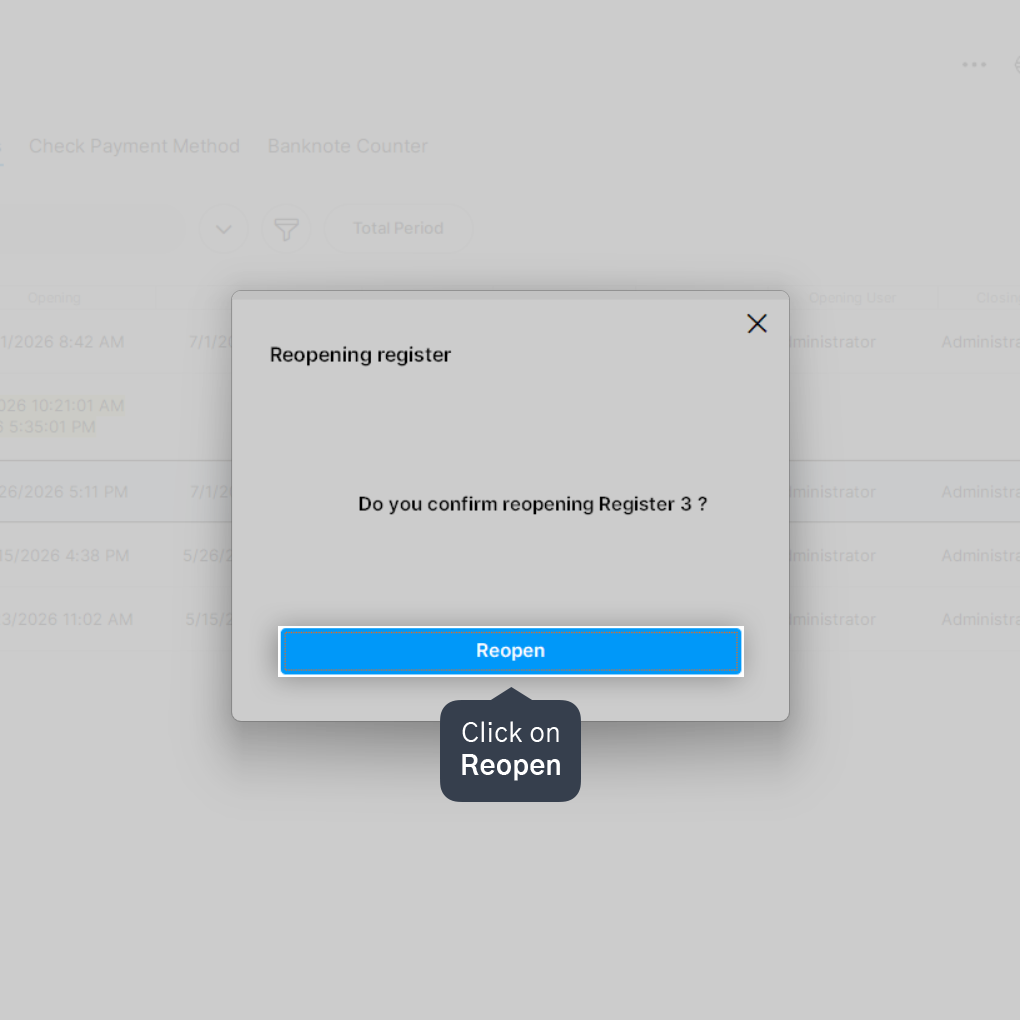
6. Click on Reopen.
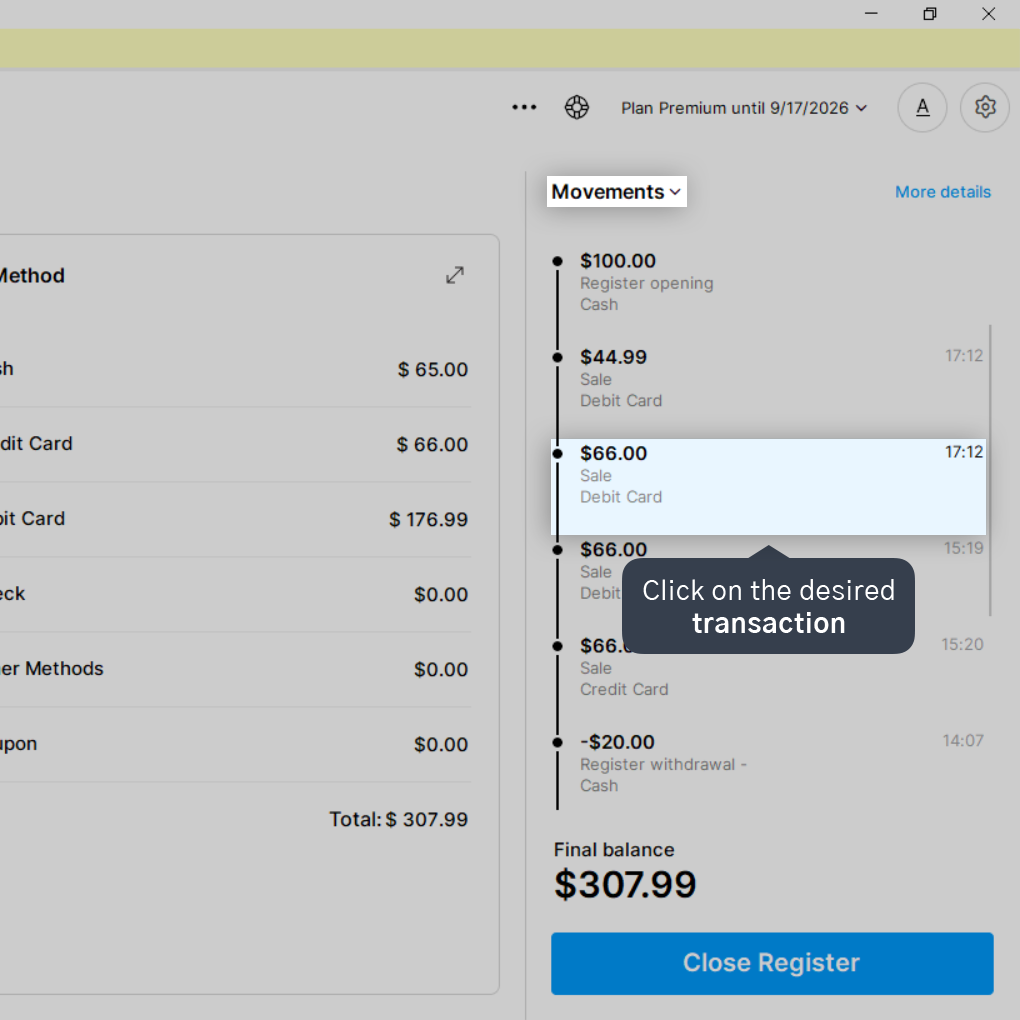
7. Click on the desired transaction under the Movements tab.
8. If you want to edit, click on Edit and make the necessary modifications.
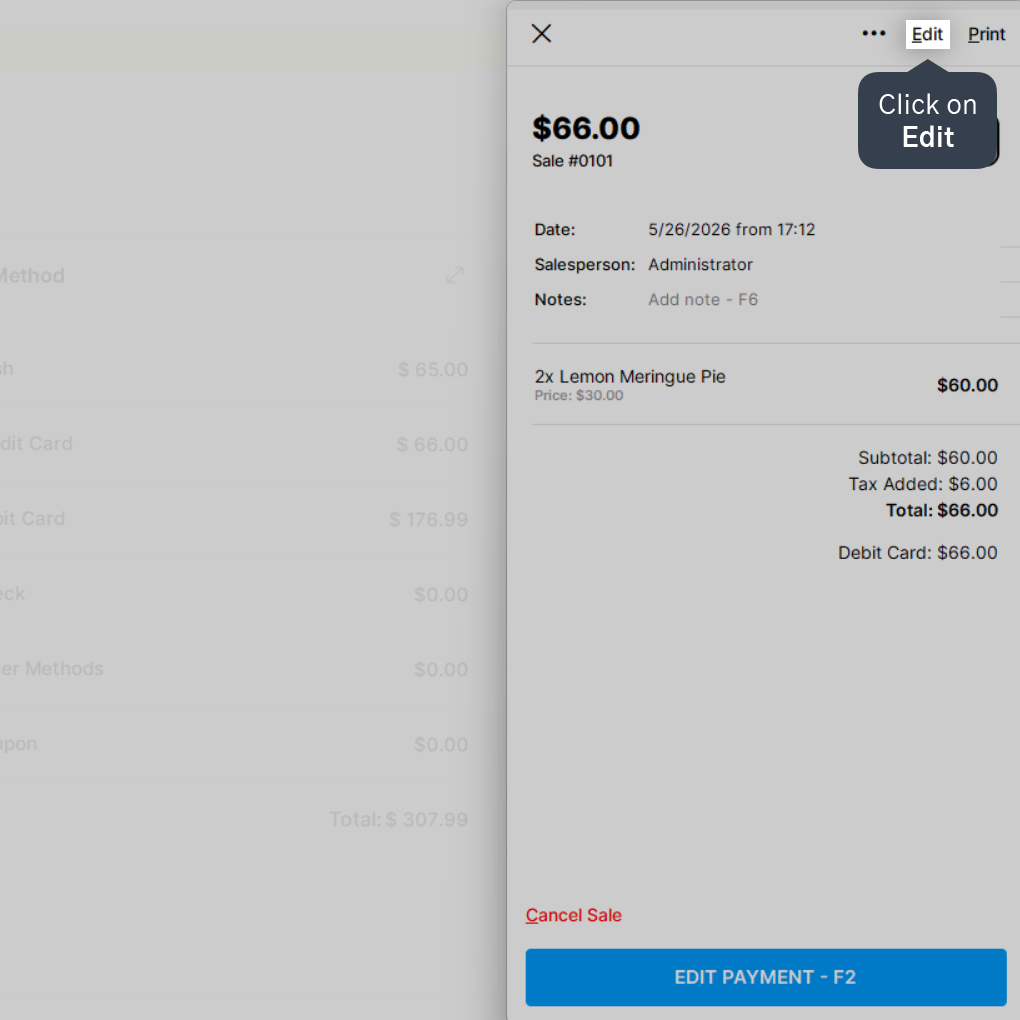
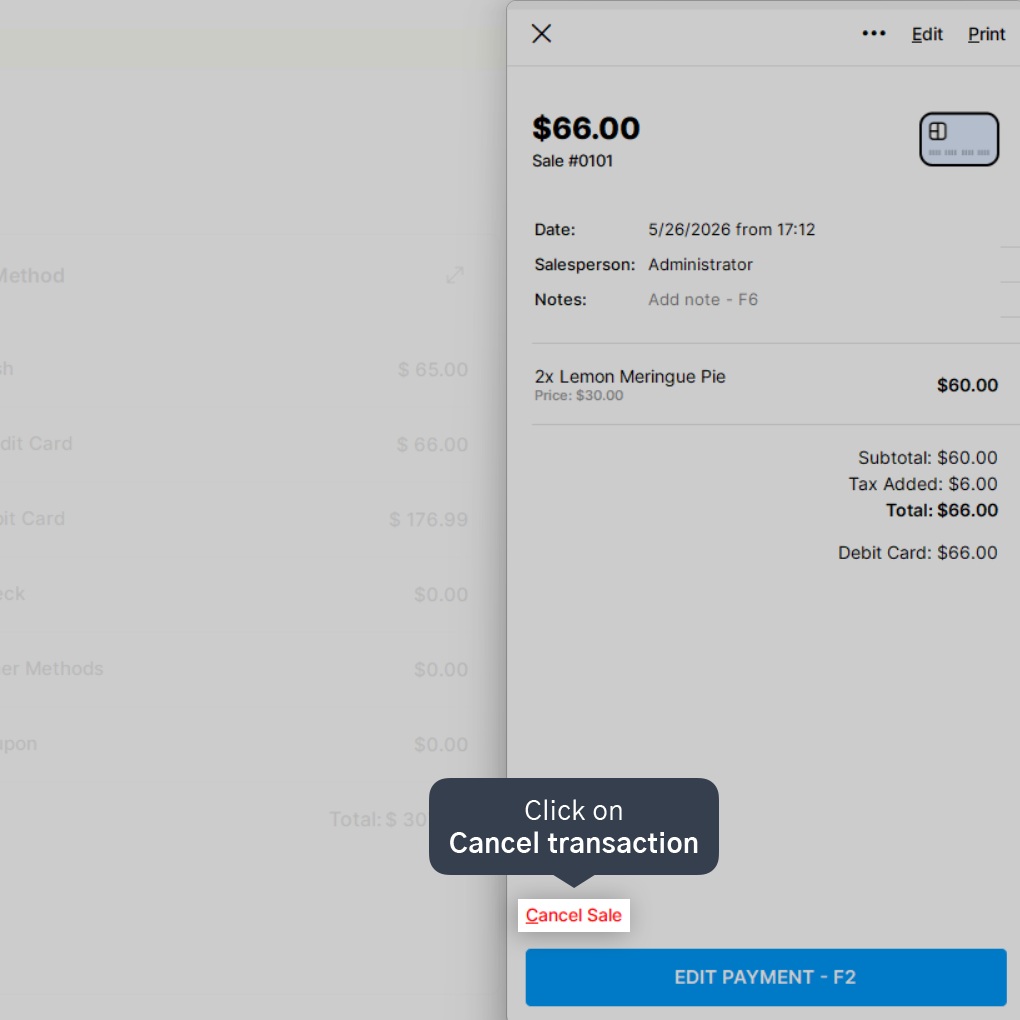
9. If you want to cancel, click on Cancel transaction.
Attention: it is important that the previous register is closed again and the current register is reopened.
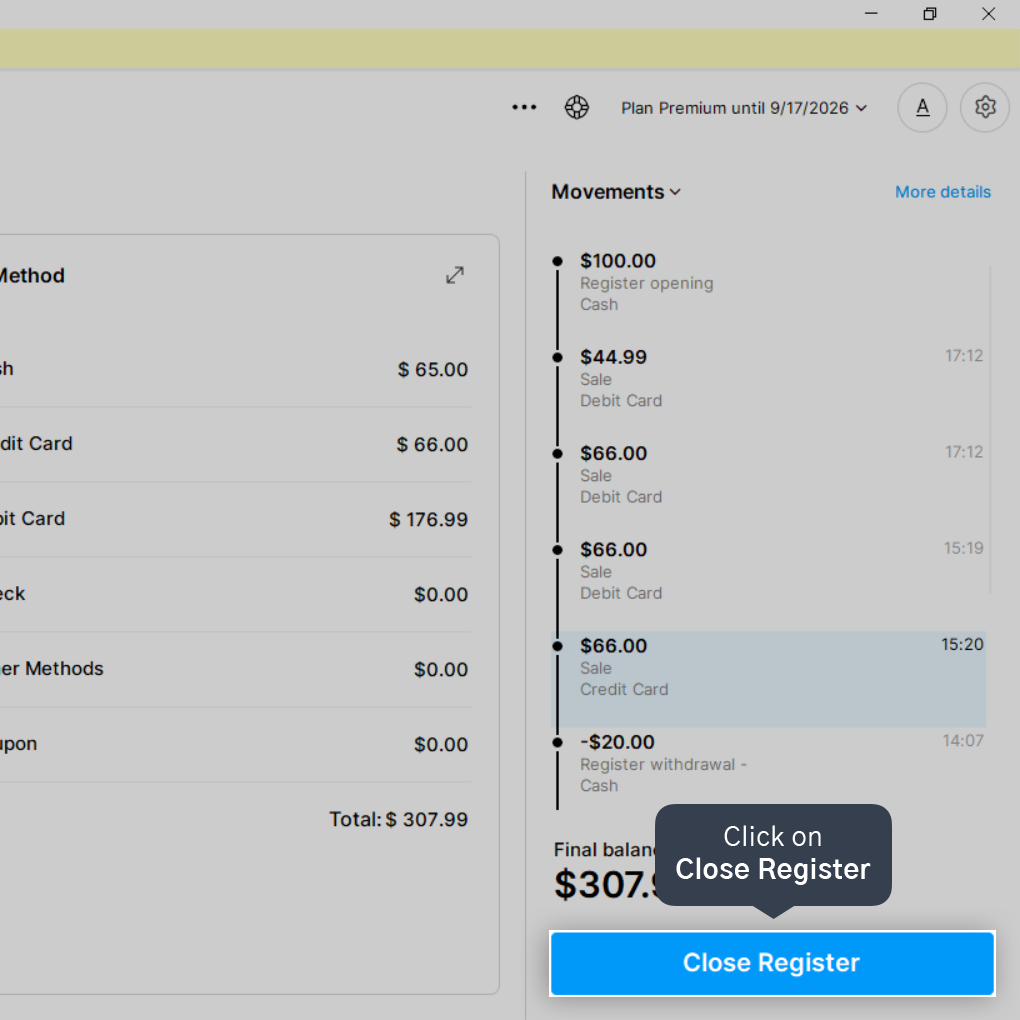
10. Click on Close Register to close the previous register session.
11. Access the Previous registers tab.
12. On the current day's register, click on the three dots icon (...) again and then click on Reopen Register to go back to entering the day's transactions.
Done! The transaction from the previous register has been edited or canceled.


