See how to change the opening and closing date/time and the final balance of previous registers.
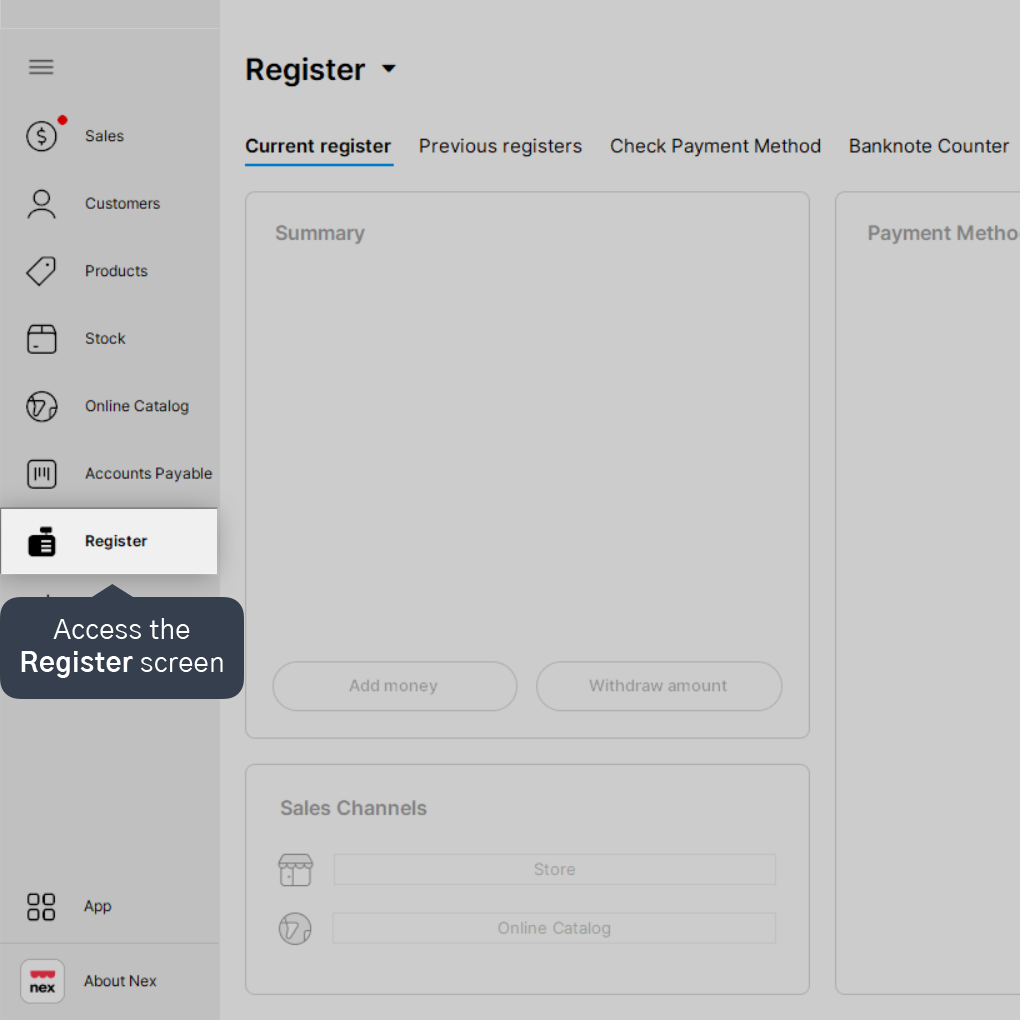
1. Access the Register screen.
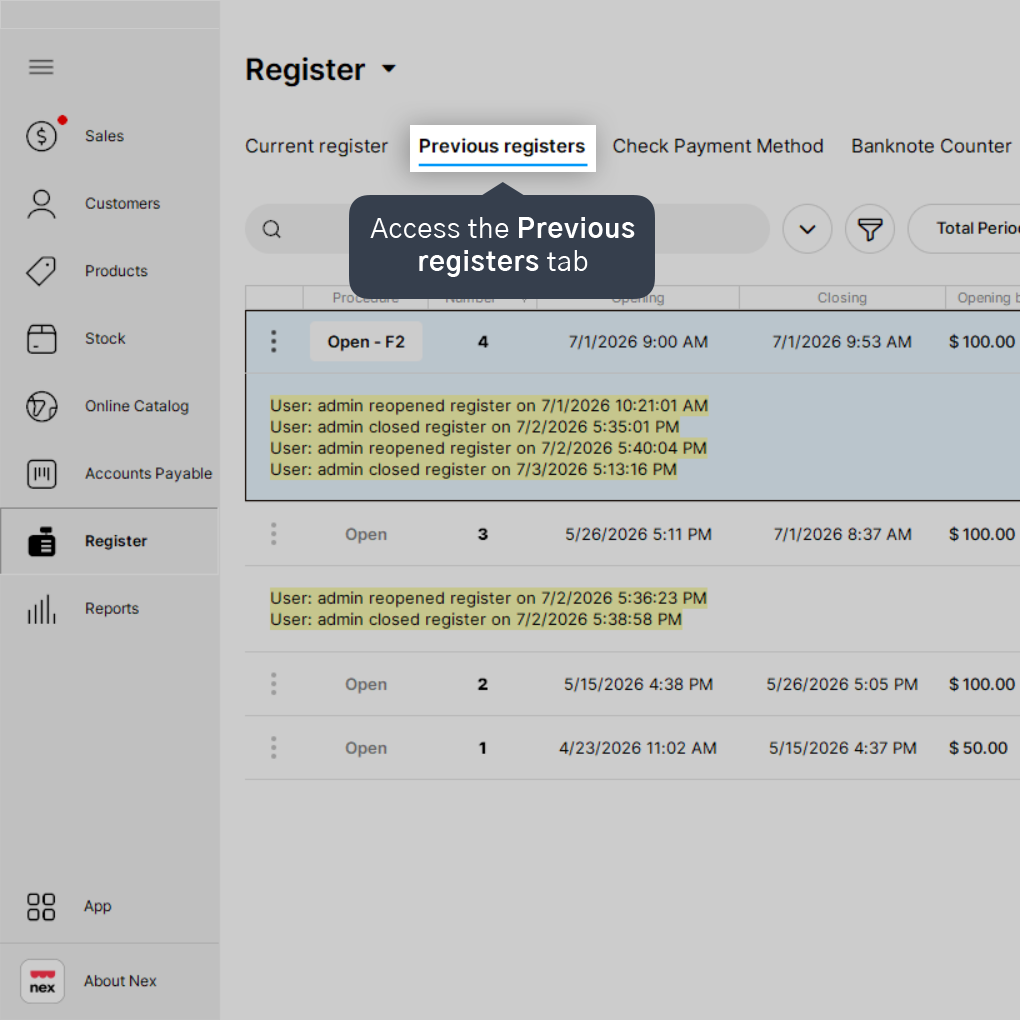
2. Access the Previous registers tab.
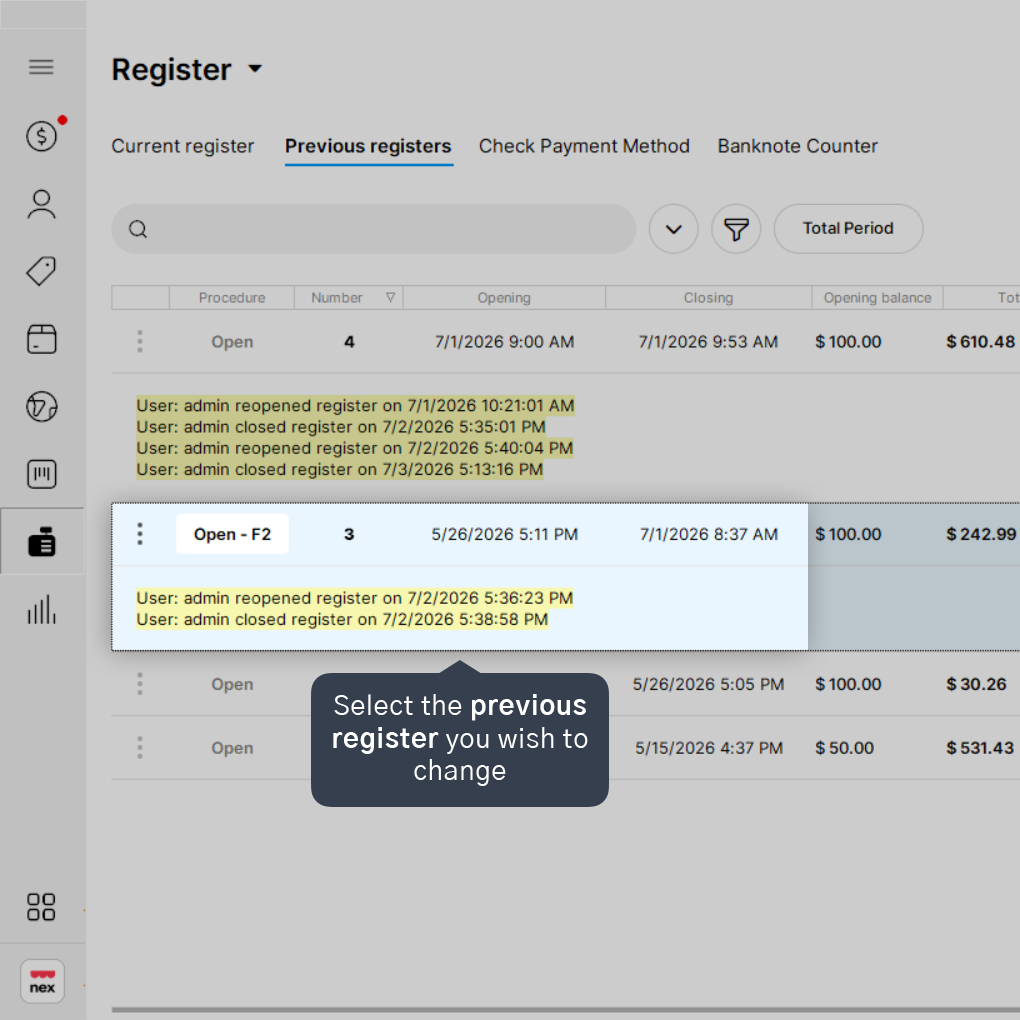
3. Locate the register you wish to change.
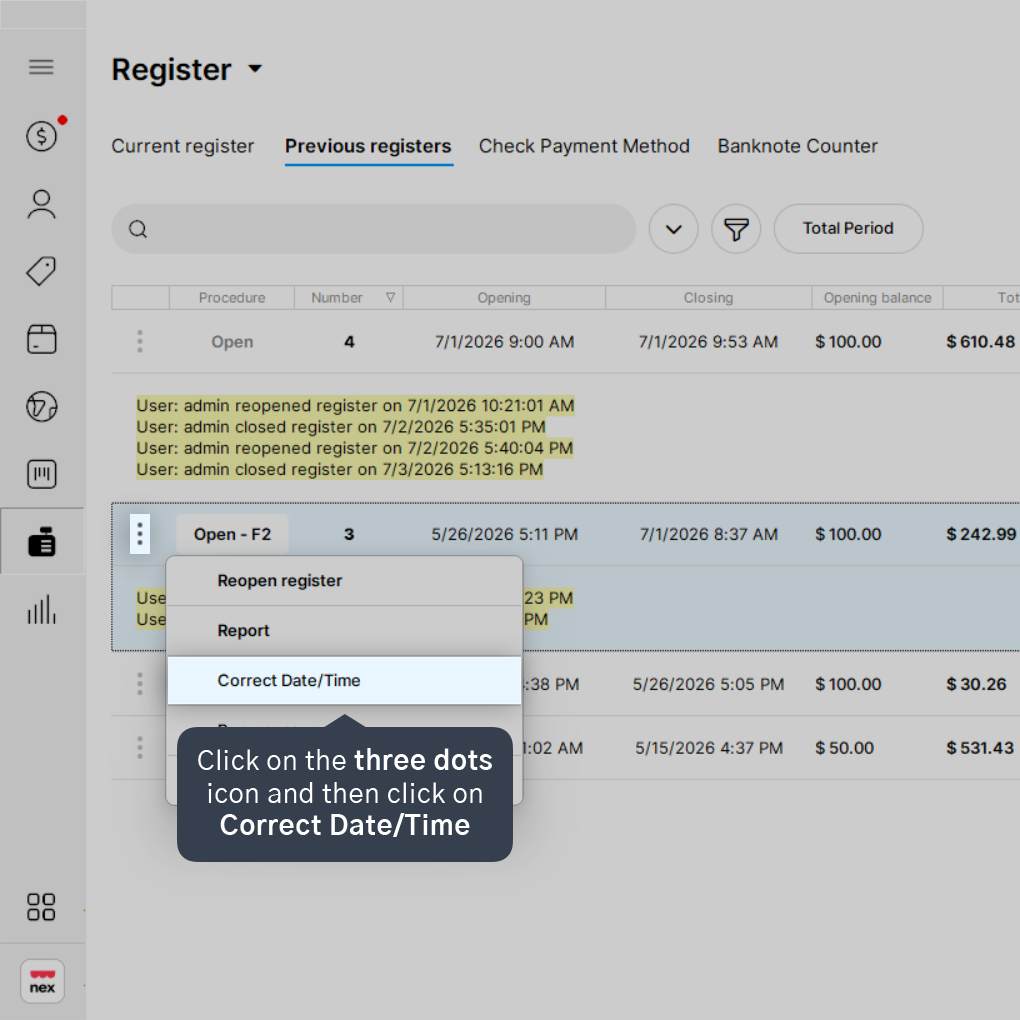
4. Click on the three dots icon (...) and then click on Correct Date/Time.
5. Change the opening, closing, and final balance information as needed.
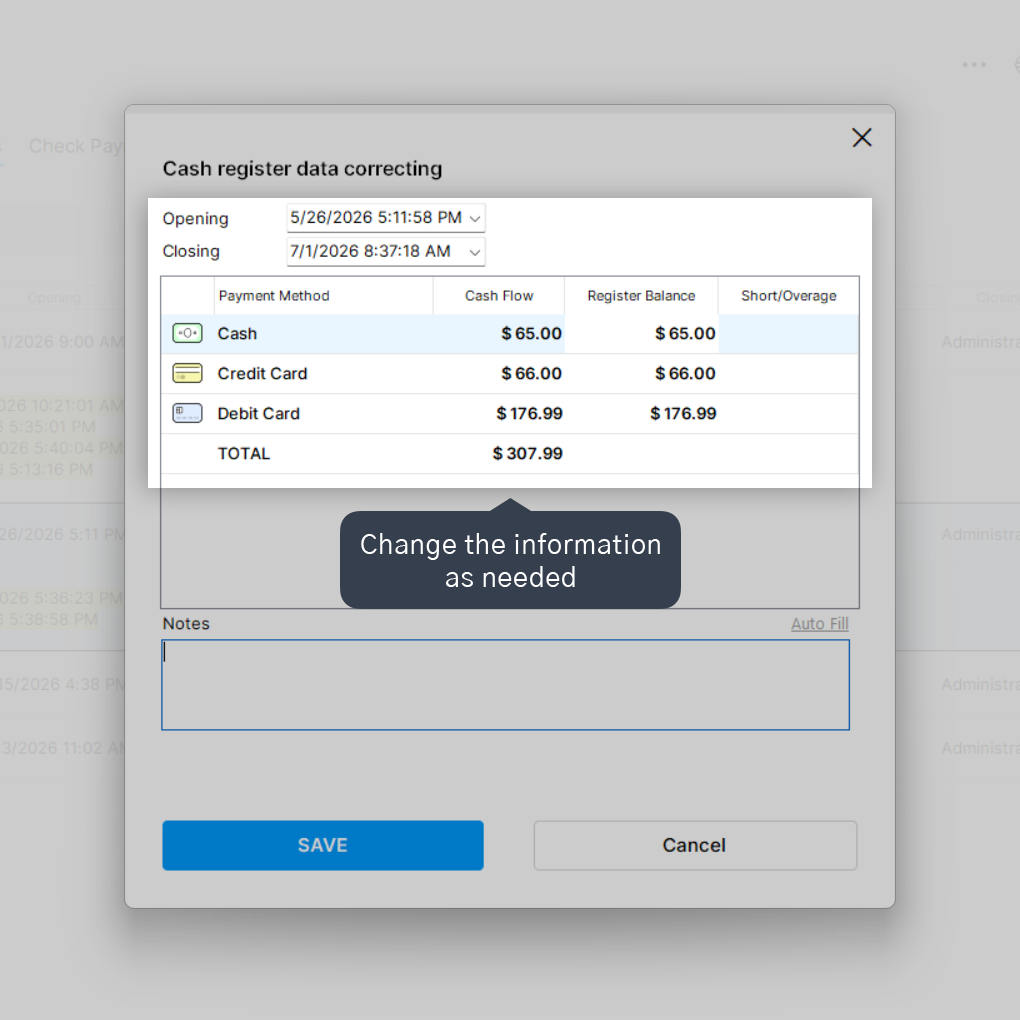
You can also add an observation to the register if you wish.
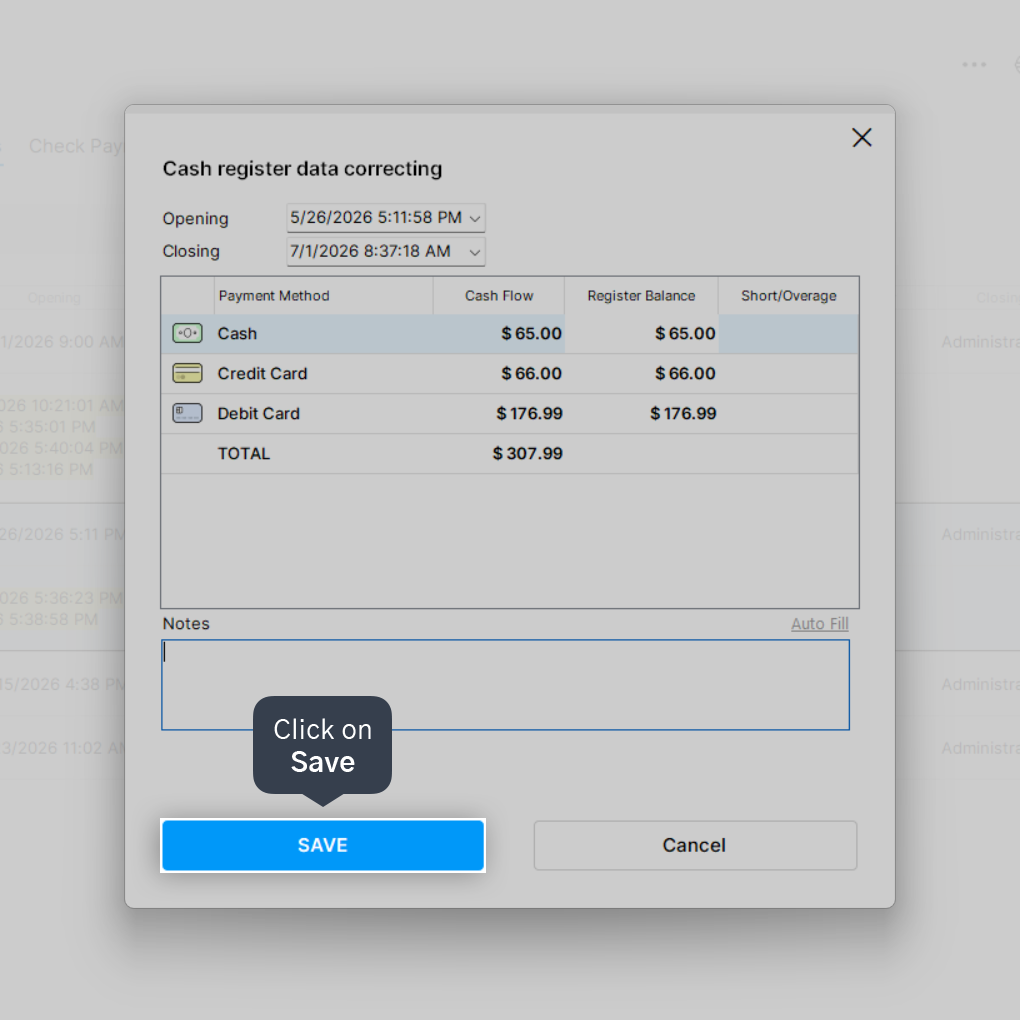
6. Click on Save.
7. Click on Yes.
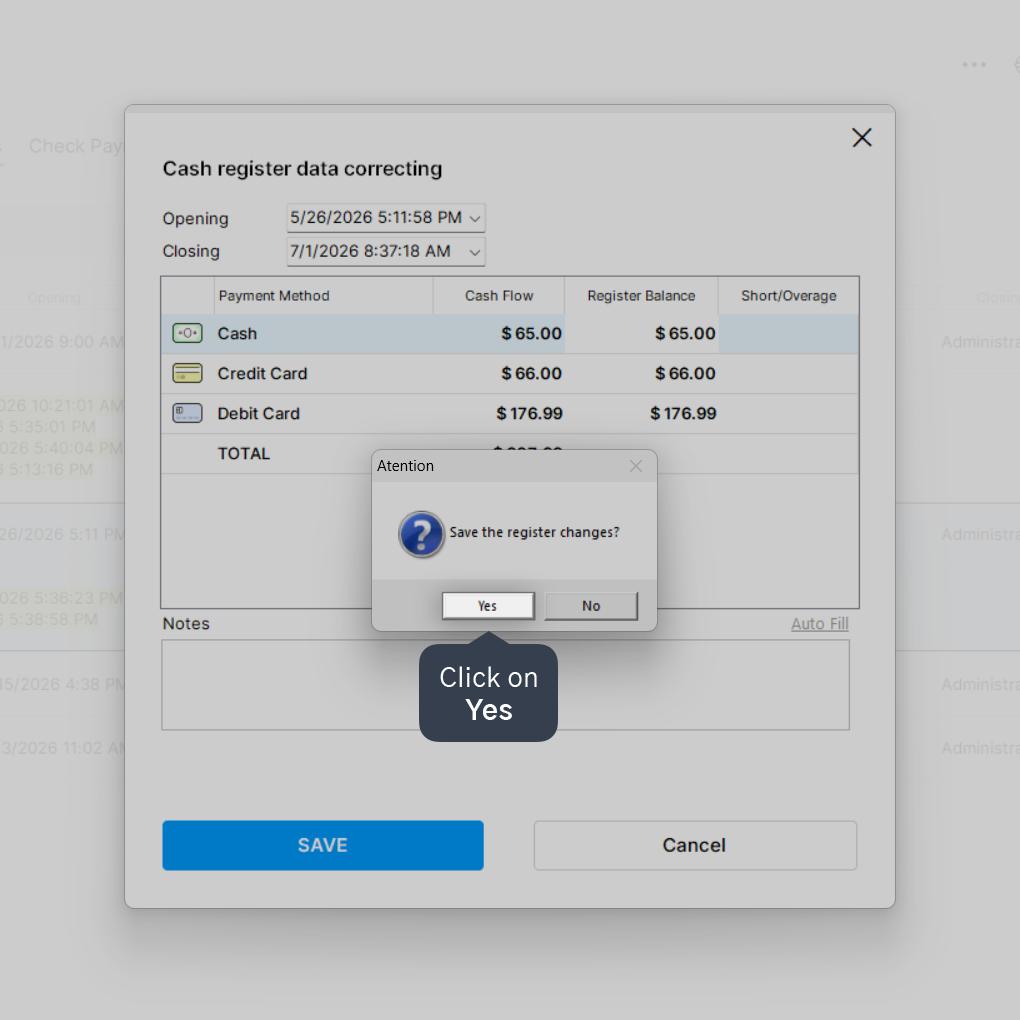
Done! The information of the previous register has been changed.


