Follow this practical guide to identify and resolve printing issues in your store.
Before tweaking the computer and printer settings, it is important to understand the situation to find the fastest solution. Check the following information:
If your plan is active, the print settings are correct, and the issue occurs on all sales, follow the steps below to attempt to solve the situation.
If you change the USB port where the printer cable is plugged in, you will need to update the port configuration in the driver, as Windows does not update this automatically.
We recommend always keeping the printer connected to the same physical port to avoid the need for further adjustments. See here how to change the input port in the printer driver. Alternatively, you can plug the cable back into the original USB port it was using before.
Sometimes a temporary communication failure occurs between devices. In this scenario, restarting the equipment usually resolves the issue.
First, restart your computer. Then, turn off the printer, unplug all cables, and wait 20 seconds. After this period, reconnect the cables and turn on the printer to check if it returns to normal operation.
The spooler manages the queue of documents that Windows needs to print. Sometimes files get stuck in this queue, preventing new documents from printing. When this happens, we need to restart the Windows Print Spooler service to clear the queue.
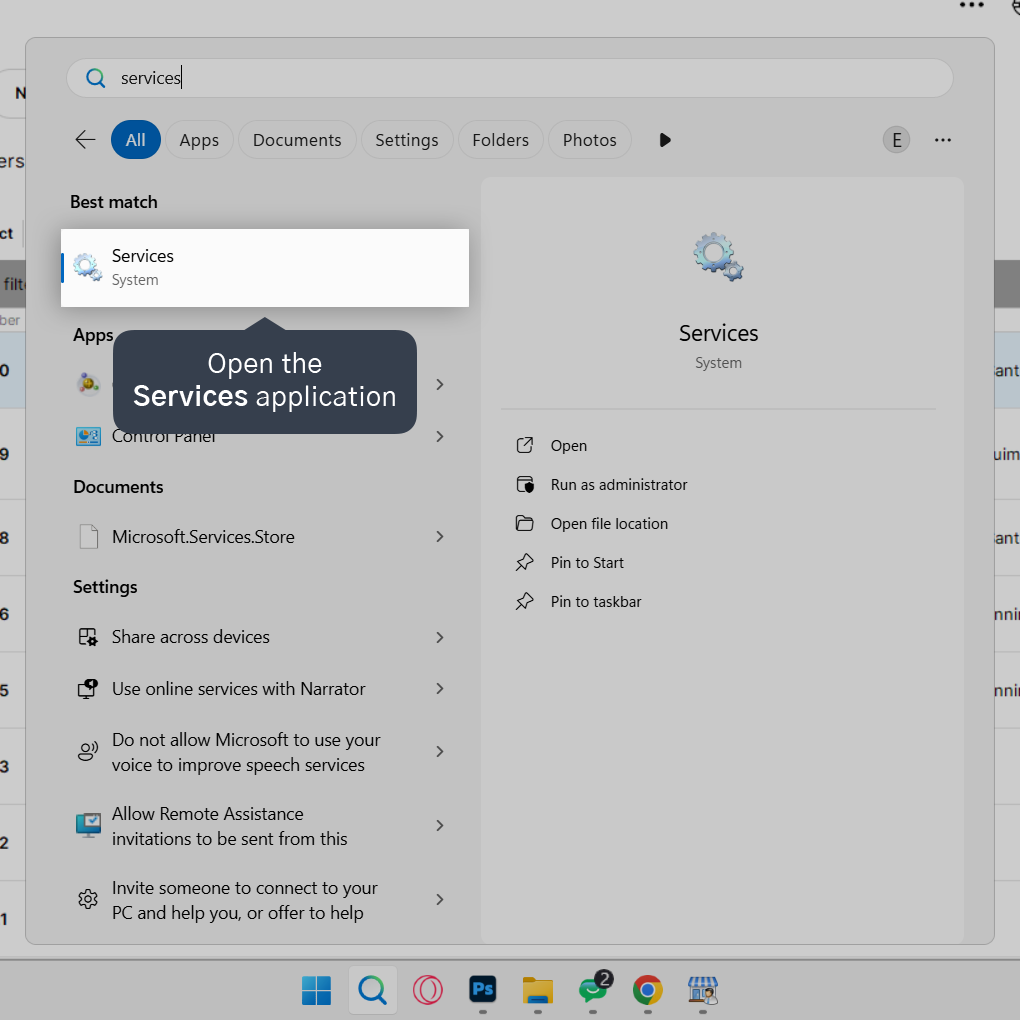
1. In the Windows Start menu, type Services and open the application.
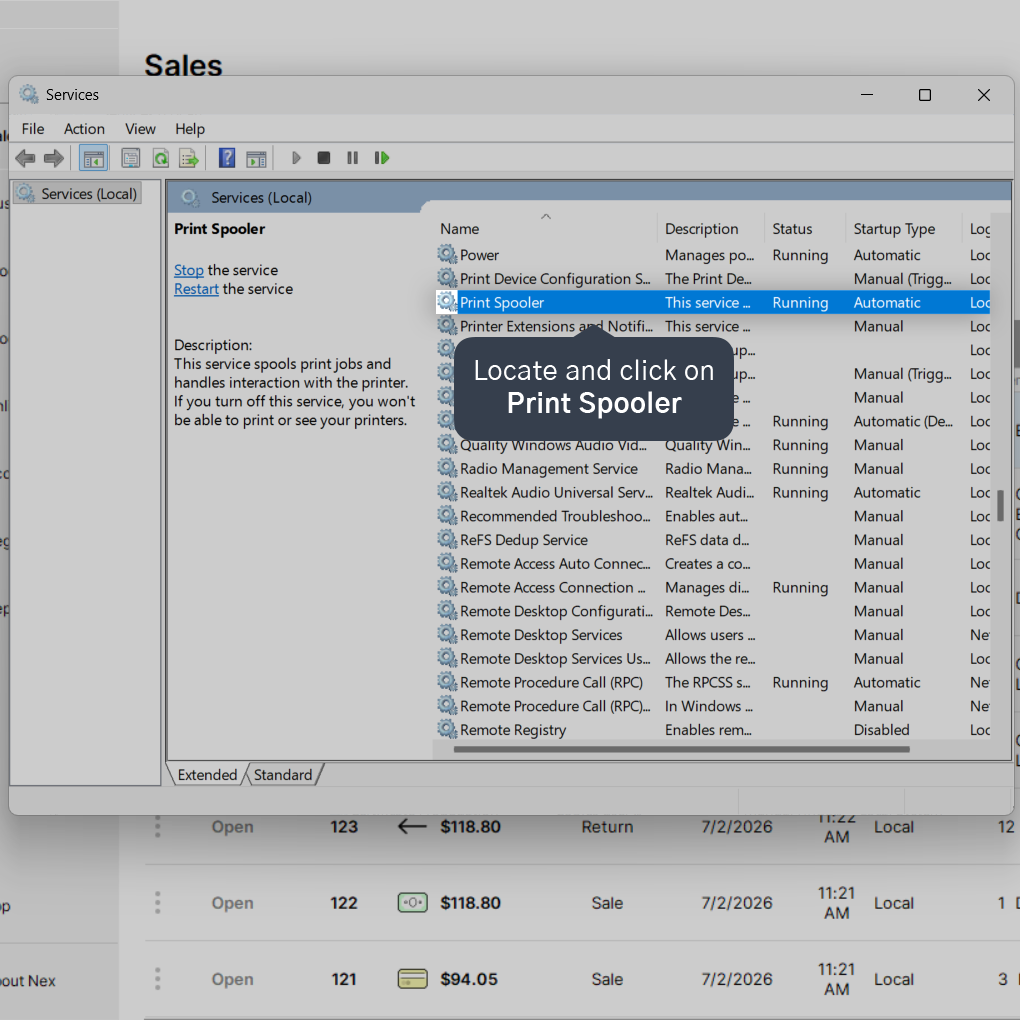
2. Locate and click on Print Spooler.
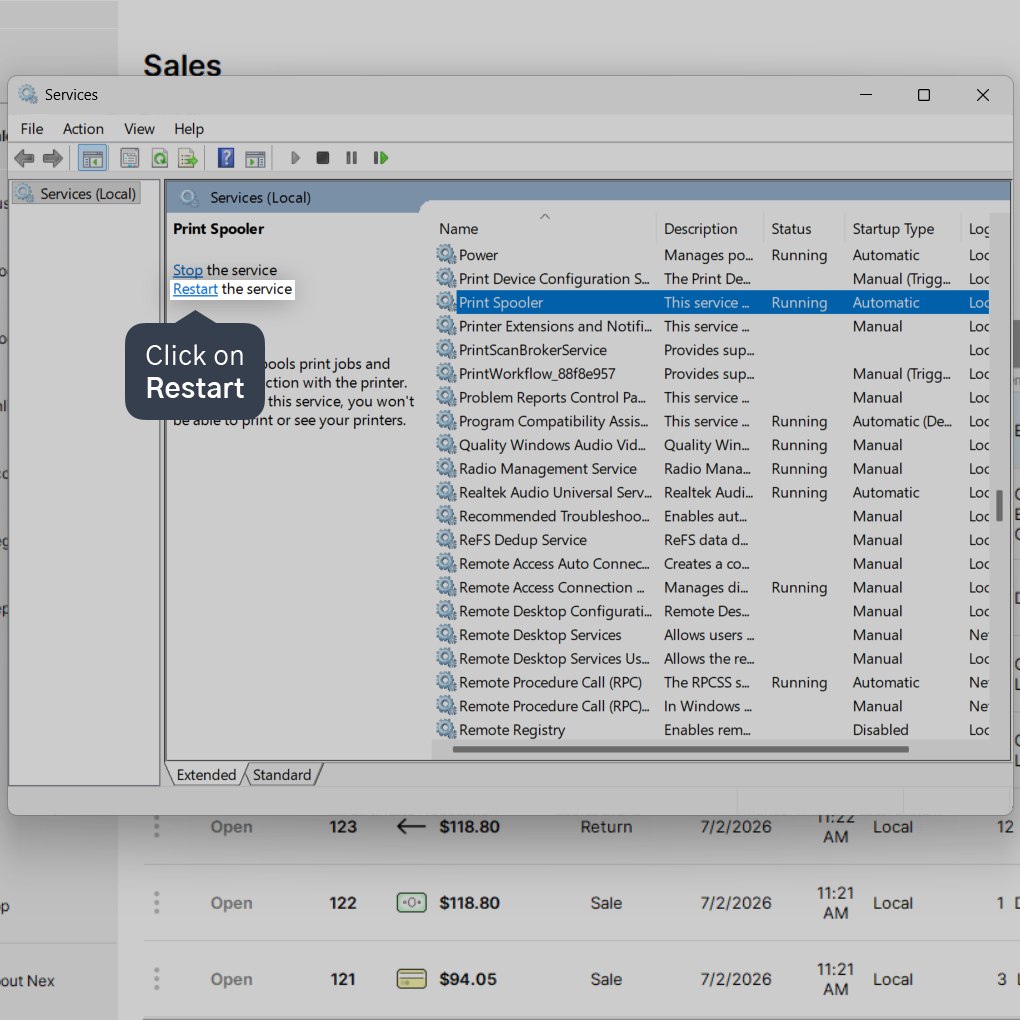
3. Click on Restart and wait for the process to complete automatically.
In some cases, it is necessary to reinstall the printer driver so that it can properly communicate with Windows again. Each brand and model has its own driver, and it must be installed correctly for the printer to function.
If the printer continues to experience issues even after taking these steps, you can contact our support team so we can assist you. Our team specializing in hardware/equipment is available to help find a solution. Check our customer service channels here.


