See how to generate a breakdown of purchases categorized by product in Nex. You can print the list or export a file to send electronically.
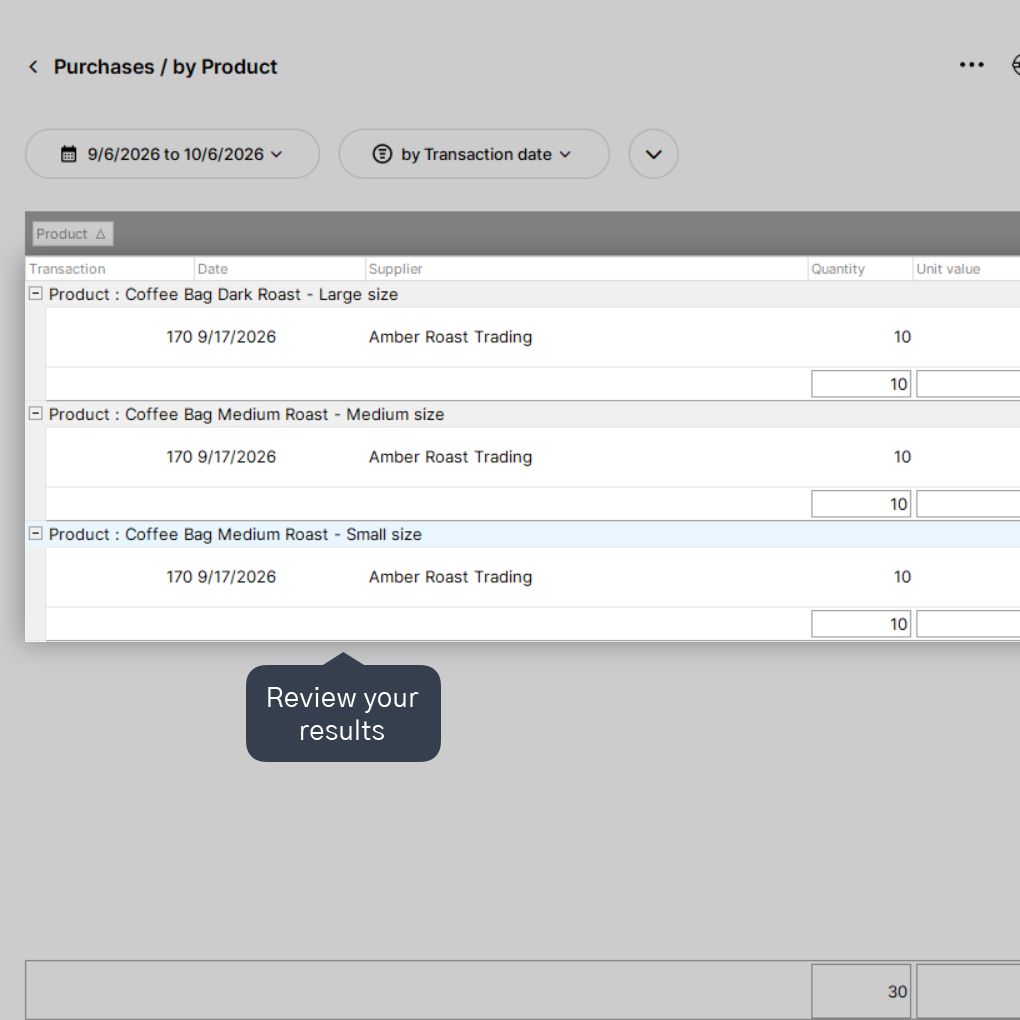
In this report, Nex displays the list of products that had purchase movements within the selected period, along with the supplier for each item. When running the report, you can view the product list and, by expanding each one, review the transaction number, purchase date, supplier, stock quantity added, unit cost, applied discounts, and total value.
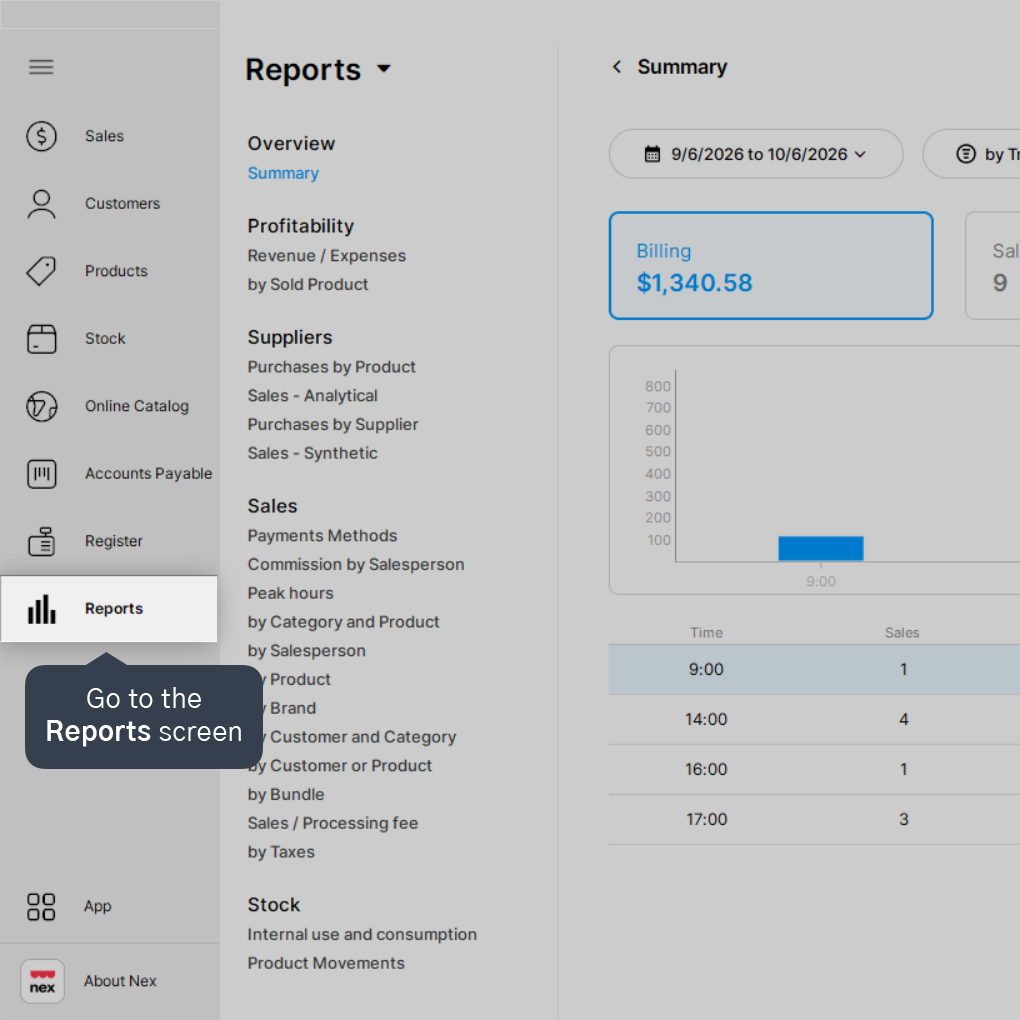
1. Go to the Reports screen.
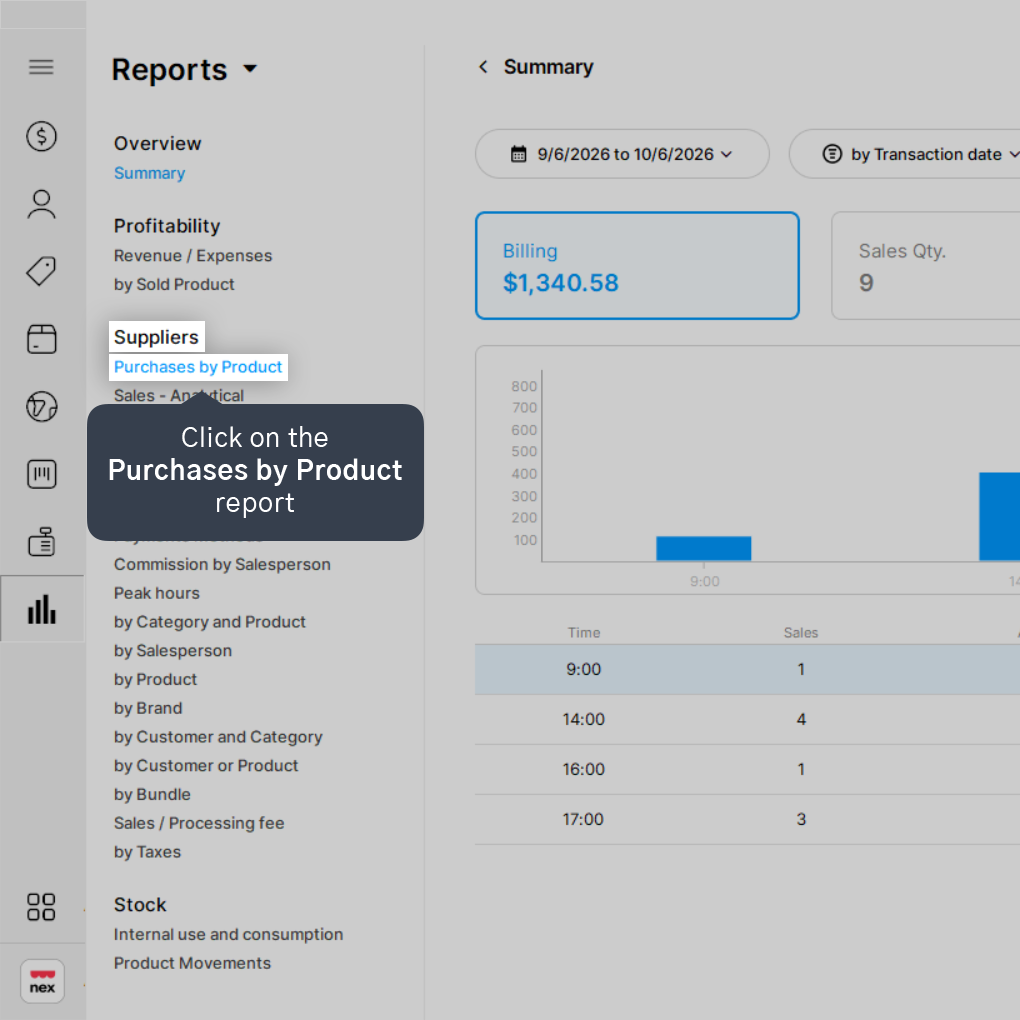
2. In the Suppliers section, click on the Purchases by Product report.
3. Choose the desired period to generate the report.
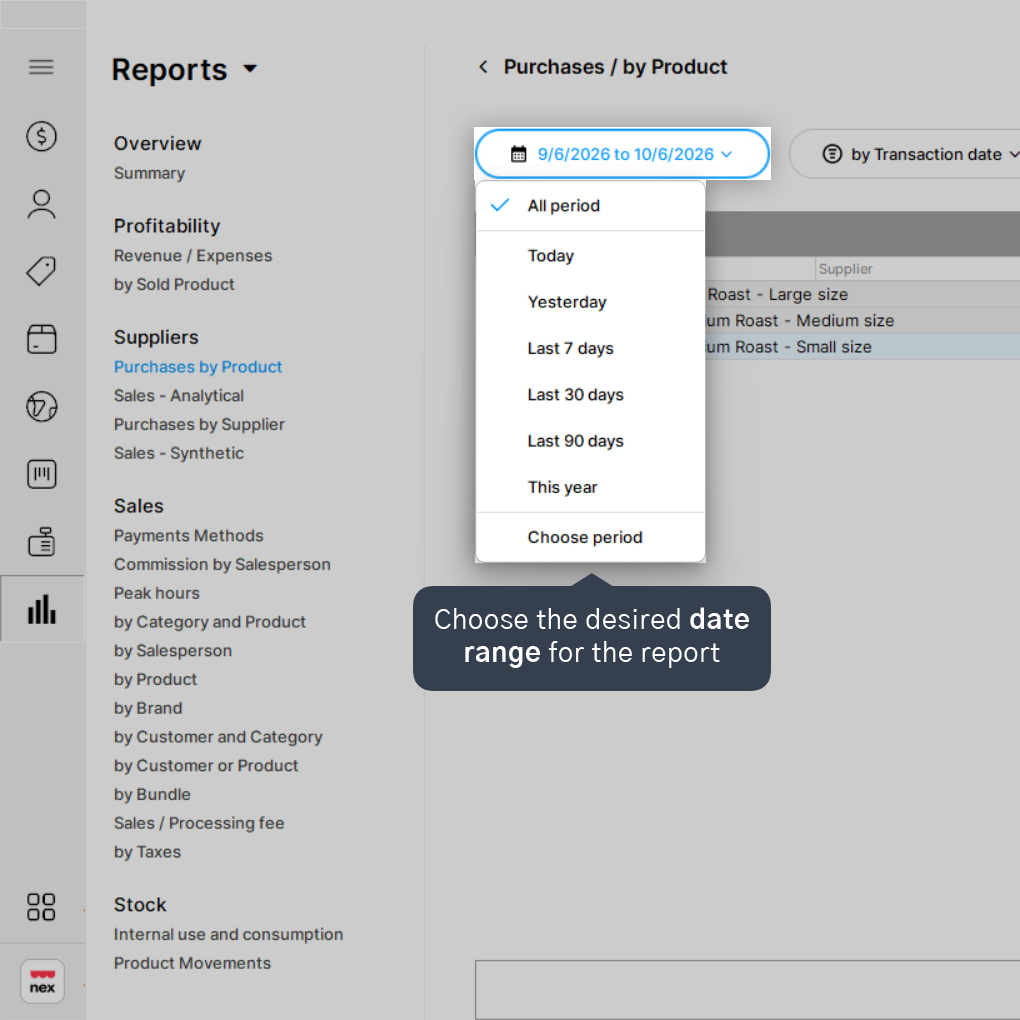
You can generate the report for Today, Yesterday, Last 7 days, Last 30 days, Last 90 days, This year, or choose a custom date range.
4. Click on the plus icons (+) to expand the results.
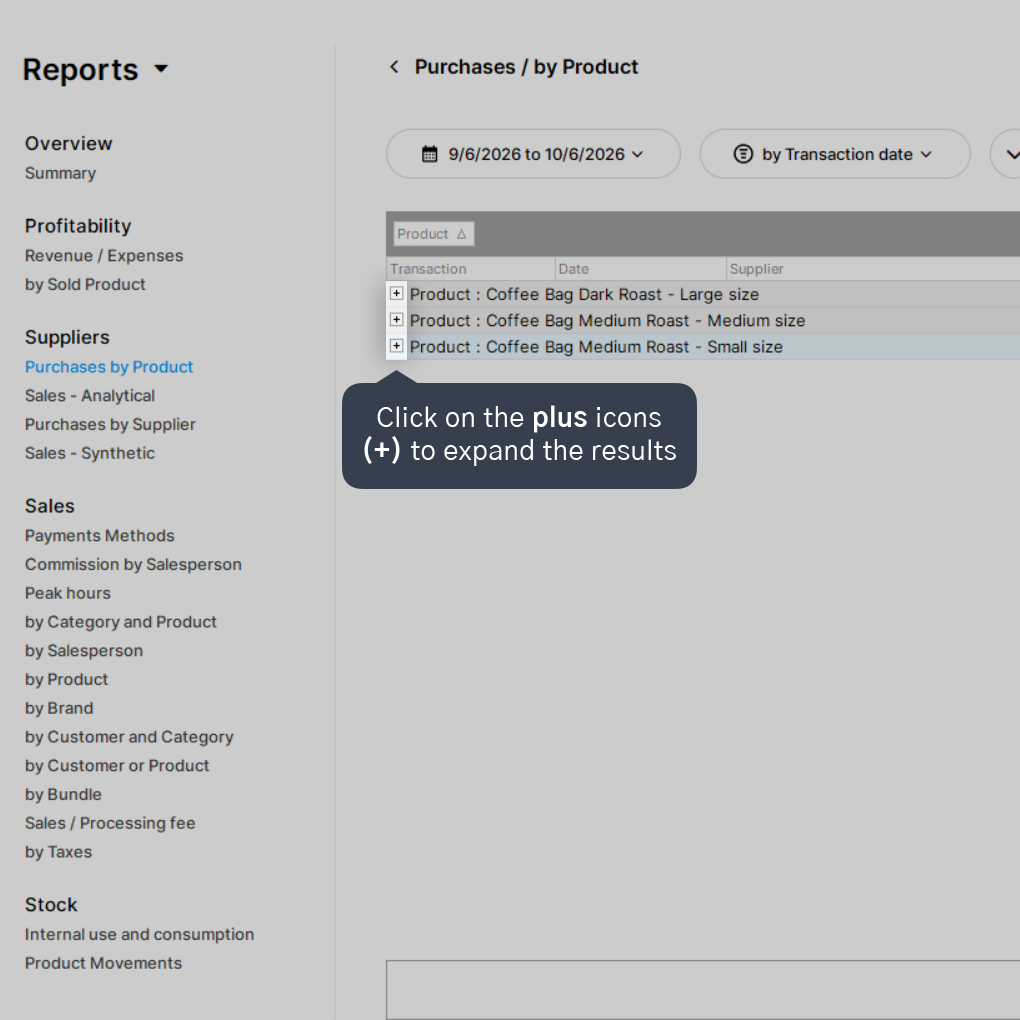
5. Review your results.
If you wish to export or print, click the three-dots menu icon in the top right corner and select your preferred option.
Done! Now you can generate a new report for another period whenever needed.


